 Pastely
 Archly

Method 1: a daily limit that blocks, in every browser
- In Timecard, open Apps & Sites and click Limits.
- Find linkedin.com and click Set.
- Choose a daily limit, from 15 minutes to 4 hours, or set your own.
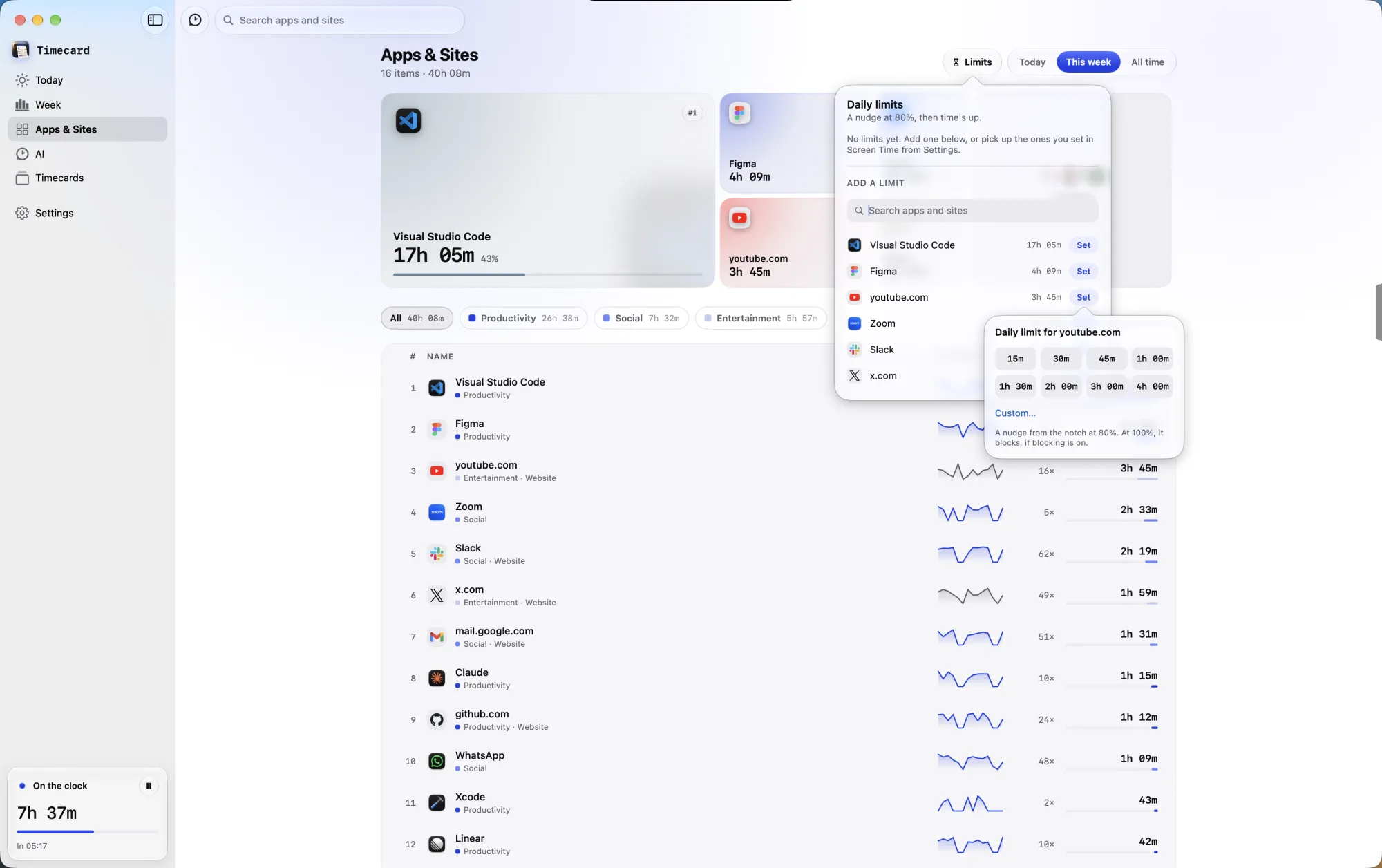
At 80%, a nudge comes out of the notch with the minutes left. At 100%, the LinkedIn tab goes blank in Safari, Chrome, Arc, Dia, Brave, Edge, Vivaldi, Opera and Comet, and the time's-up screen covers it until tomorrow.
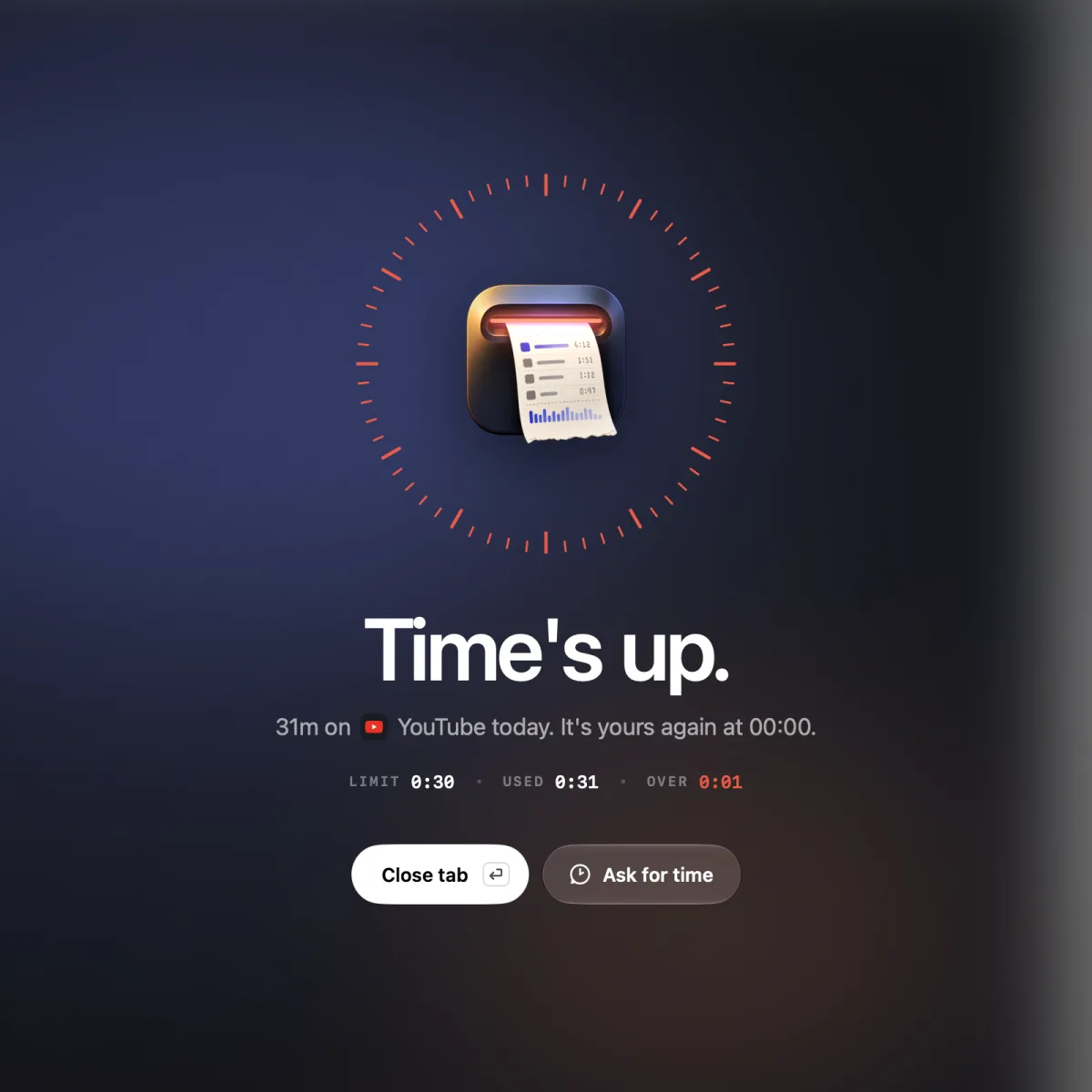
Need it for something real? Click Ask for time and say why. On macOS 26, Apple Intelligence on your Mac weighs the reason and the page. A tutorial for work gets time; one more video doesn't.
If LinkedIn is part of your job, a generous limit works better than a block: an hour for real work, not the feed all afternoon.
Method 2: Screen Time, in Safari only
- Open System Settings › Screen Time › Content & Privacy and turn on Content & Privacy.
- Click App Store, Media, Web, & Games. Under Safari, set Access to Web Content to Limit Adult Websites.
- Click Customize, click + under Restricted, enter linkedin.com, click OK, then Done.
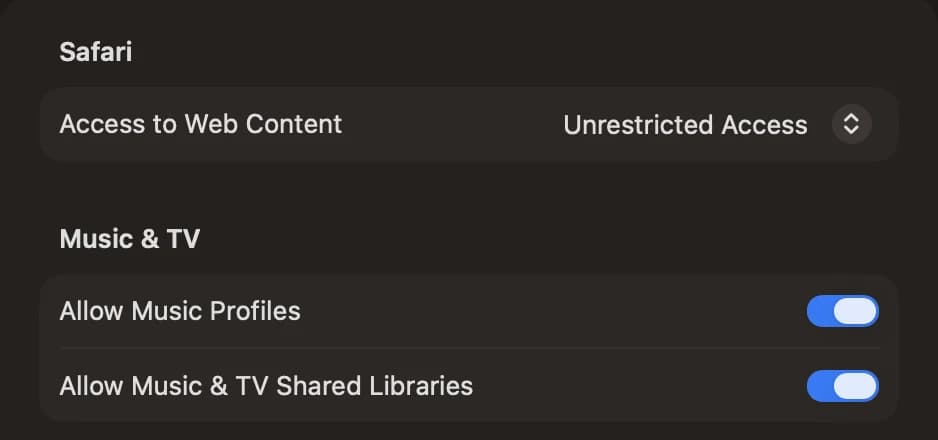
This blocks LinkedIn completely, all day, and only in Safari. Chrome, Arc and Brave ignore Screen Time's website limits.
Method 3: the hosts file, a full block
In Terminal, open the hosts file with sudo nano /etc/hosts and add these lines at the end:
127.0.0.1 linkedin.com
127.0.0.1 www.linkedin.com
Save with Control-O, quit with Control-X, then run sudo dscacheutil -flushcache; sudo killall -HUP mDNSResponder. LinkedIn is blocked in every browser until you delete the lines. There's no limit and no exception, just a wall.
Which method should you use?
- A daily limit if you want some LinkedIn, just not all evening.
- Screen Time if you only use Safari and want it gone completely.
- The hosts file for a permanent block in every browser, at no cost.
 YouTube

 Reddit
 Instagram

 Facebook
 Netflix
 Discord