 Pastely
 Archly
Your year on your Mac, Wrapped.
Timecard has kept every minute of your year. Wrapped plays it back like Spotify Wrapped, scene by scene: every hour, your longest day, the app you never closed, when you peak, and a position for the year you actually had. Then it prints the whole year on one long card.
- scenes, in their own window
- 12
- scenes, in their own window
- positions it can give you
- 6 × 3
- positions it can give you
- annual card, printed from the notch
- 1
- annual card, printed from the notch
- bytes uploaded
- 0
- bytes uploaded
Play it here
Your year, scene by scene.
This is the story from the app, on the same 1120 × 700 canvas, with the same springs and the printer's sound. It plays from a real demo year. Click to go to the next scene.
So far this year you've spent
HOURS
& 44 MIN
in front of this Mac.
64
full days, around the clock
38
forty-hour weeks
282
days on the clock, of 298 on file
 TimecardWRAPPED 2026
Twelve scenes
Everything Timecard saw, read back.
Each scene is one fact about your year, said plainly, with the number that backs it. If something didn't happen, its scene is skipped: no AI scene if you never used an AI coding tool, no deep work if you never stayed put.
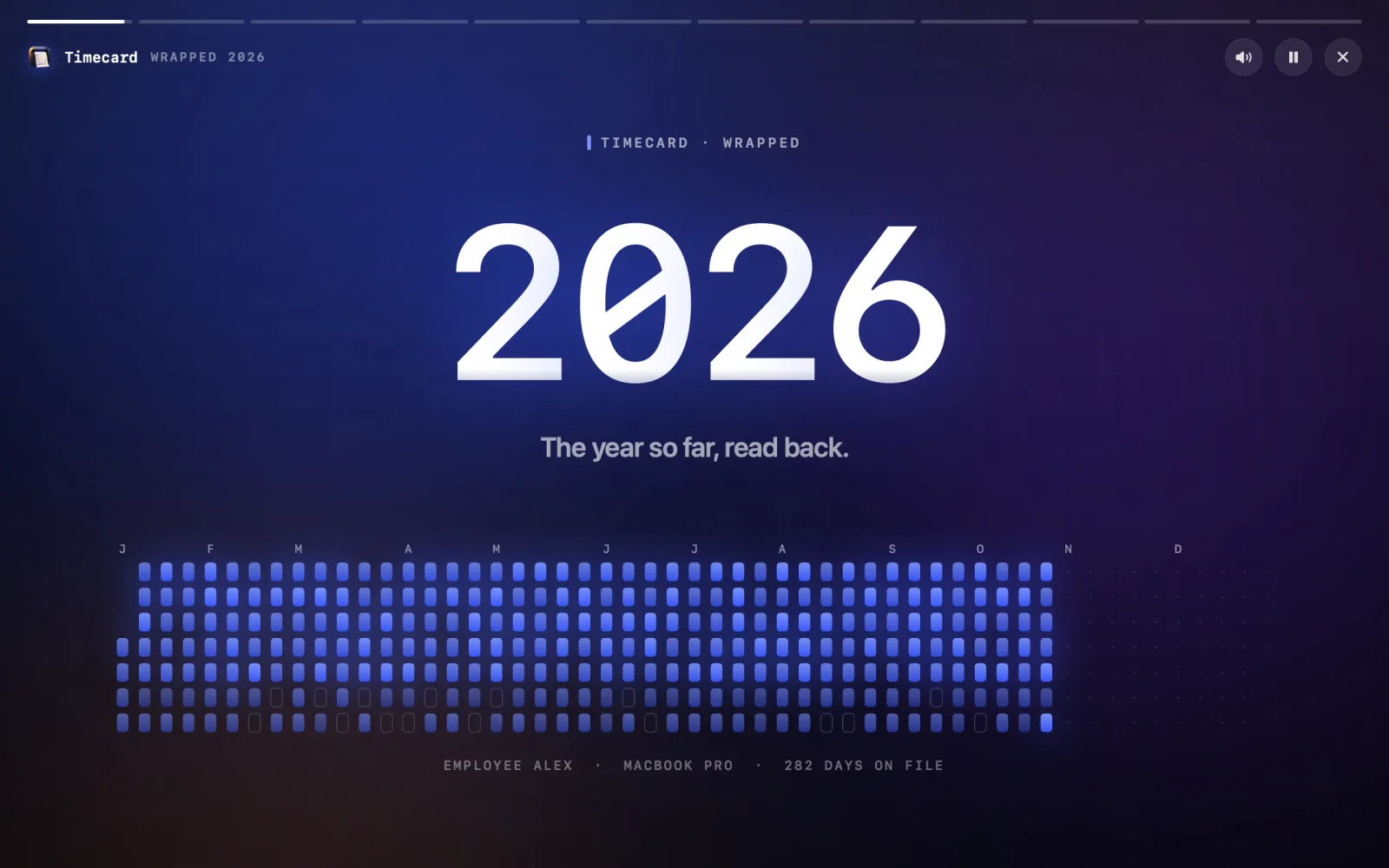
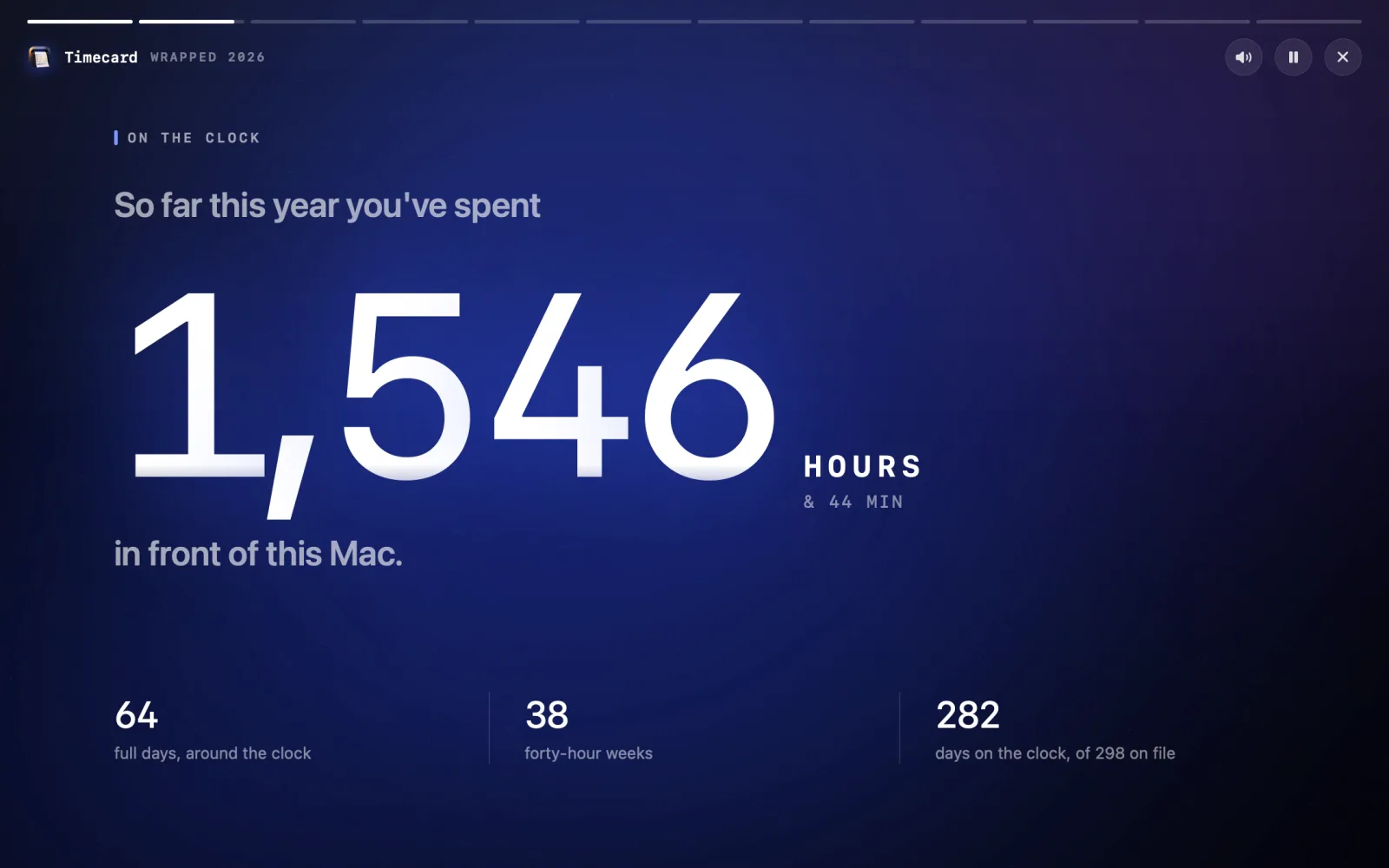
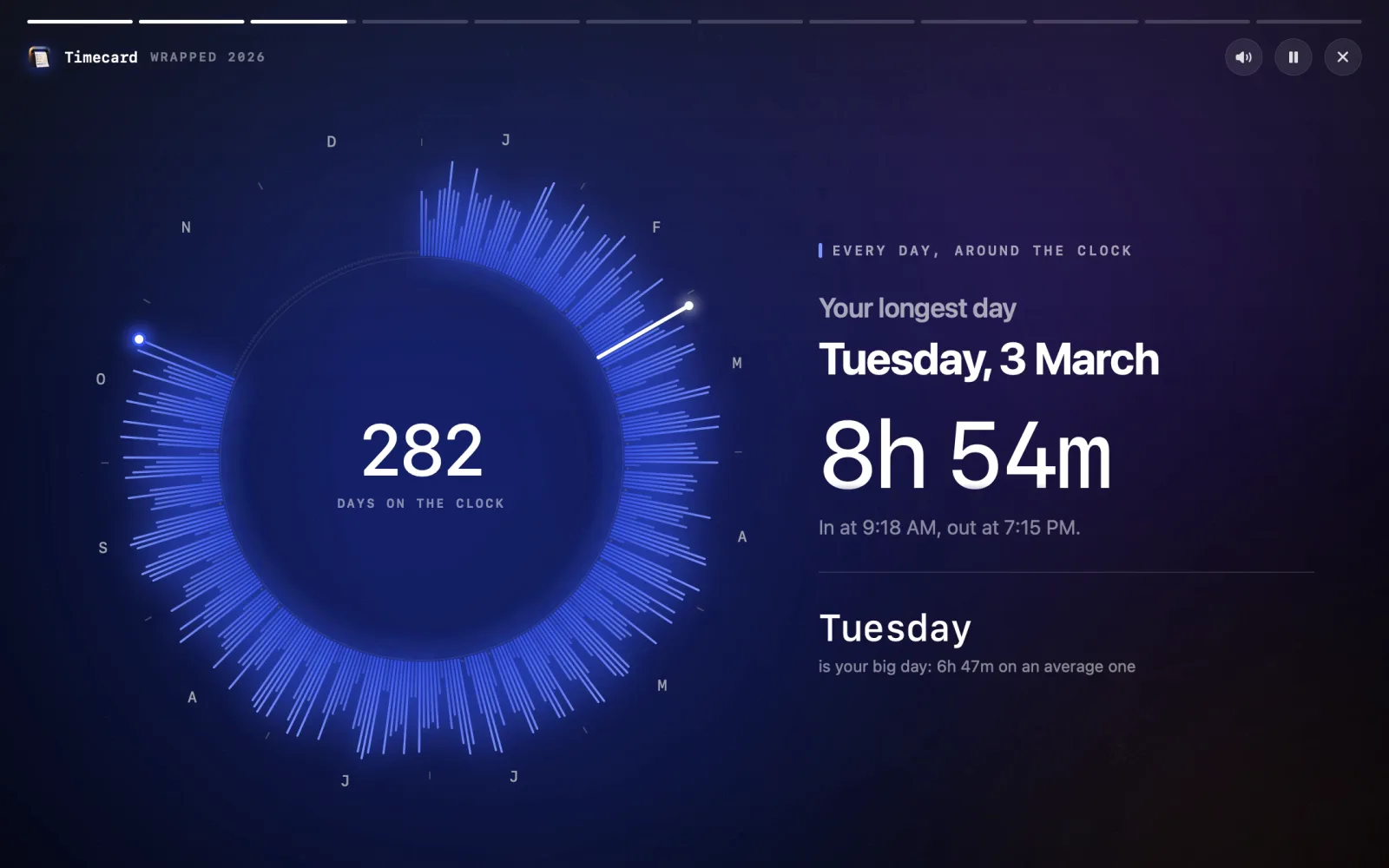
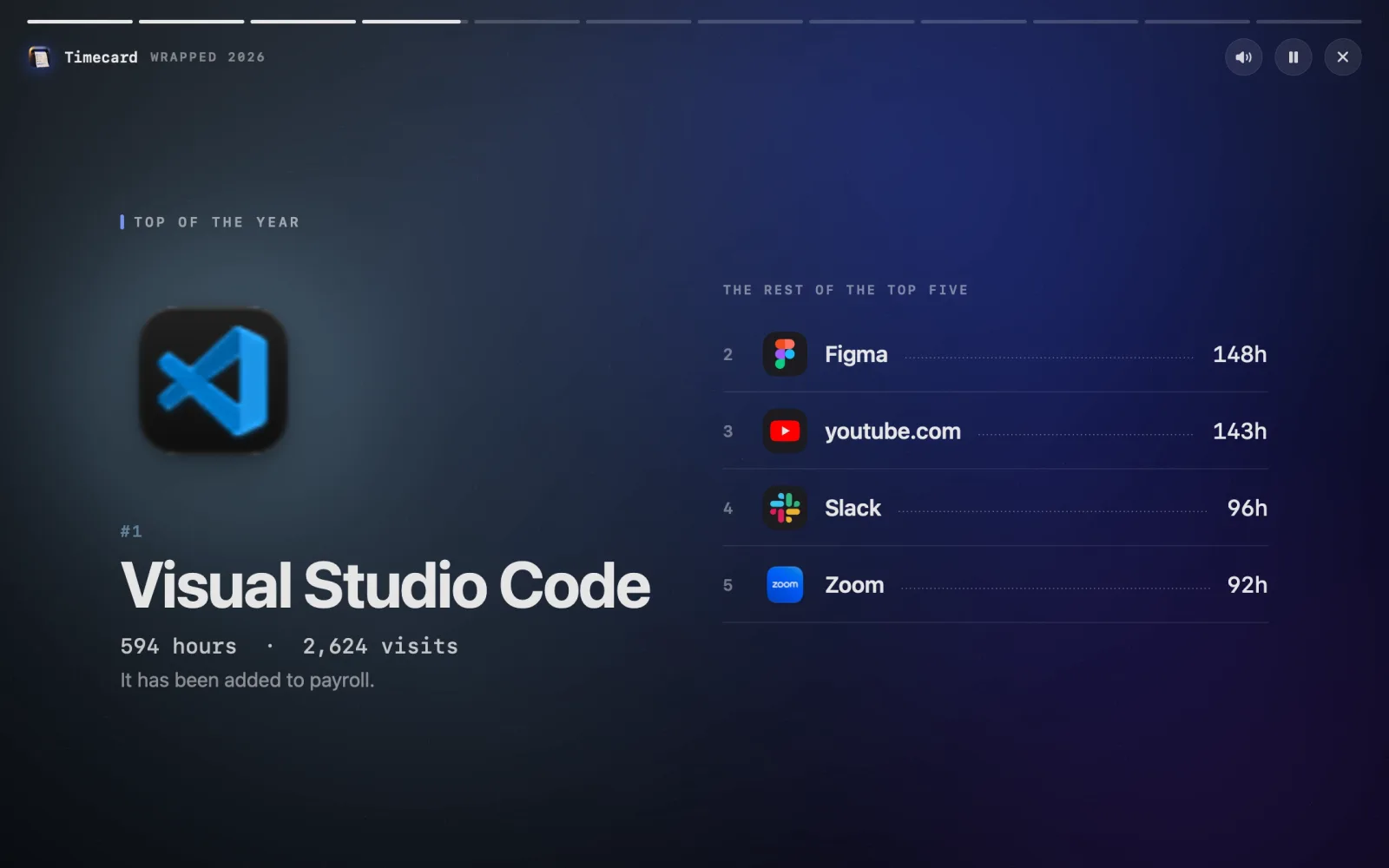
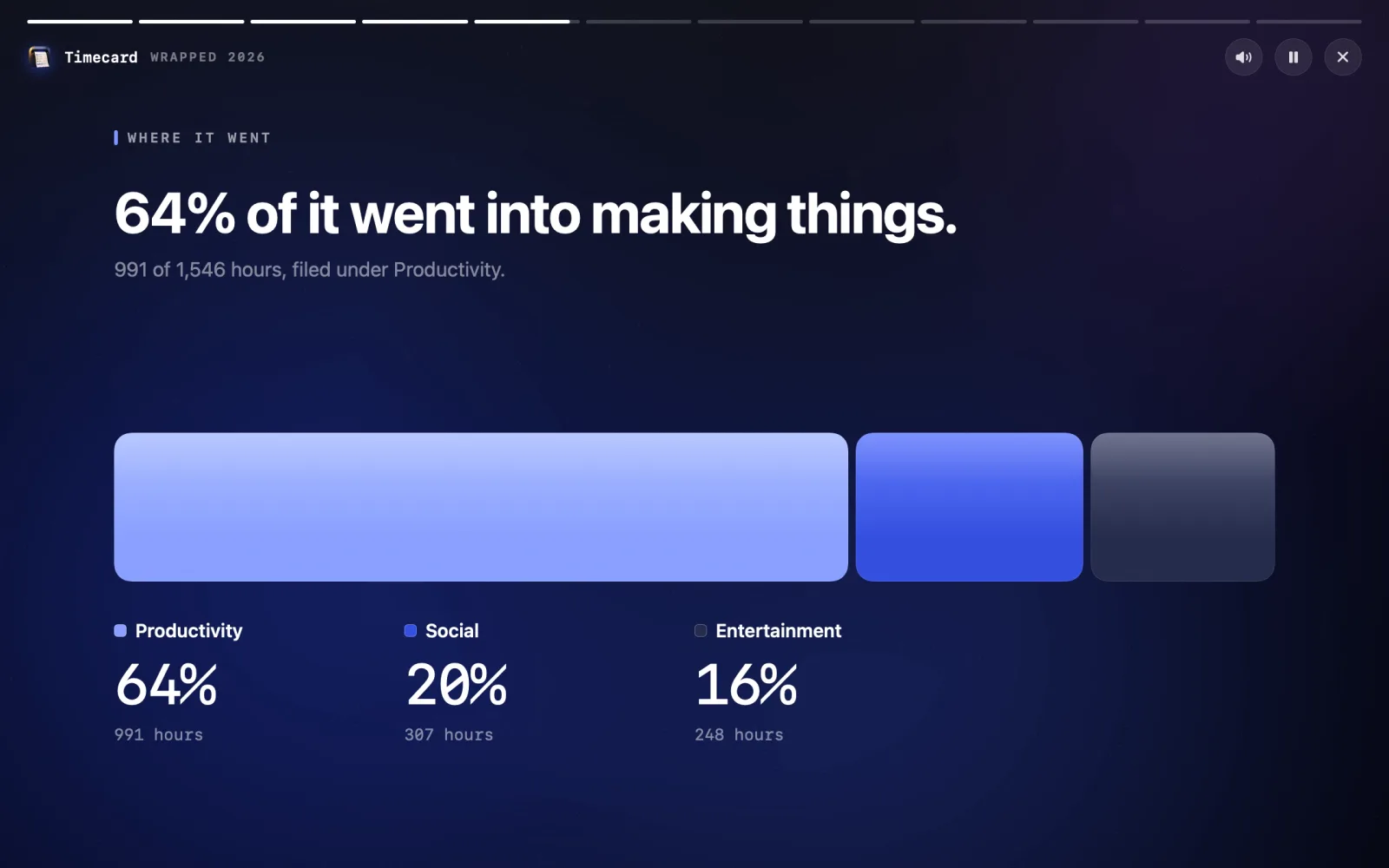
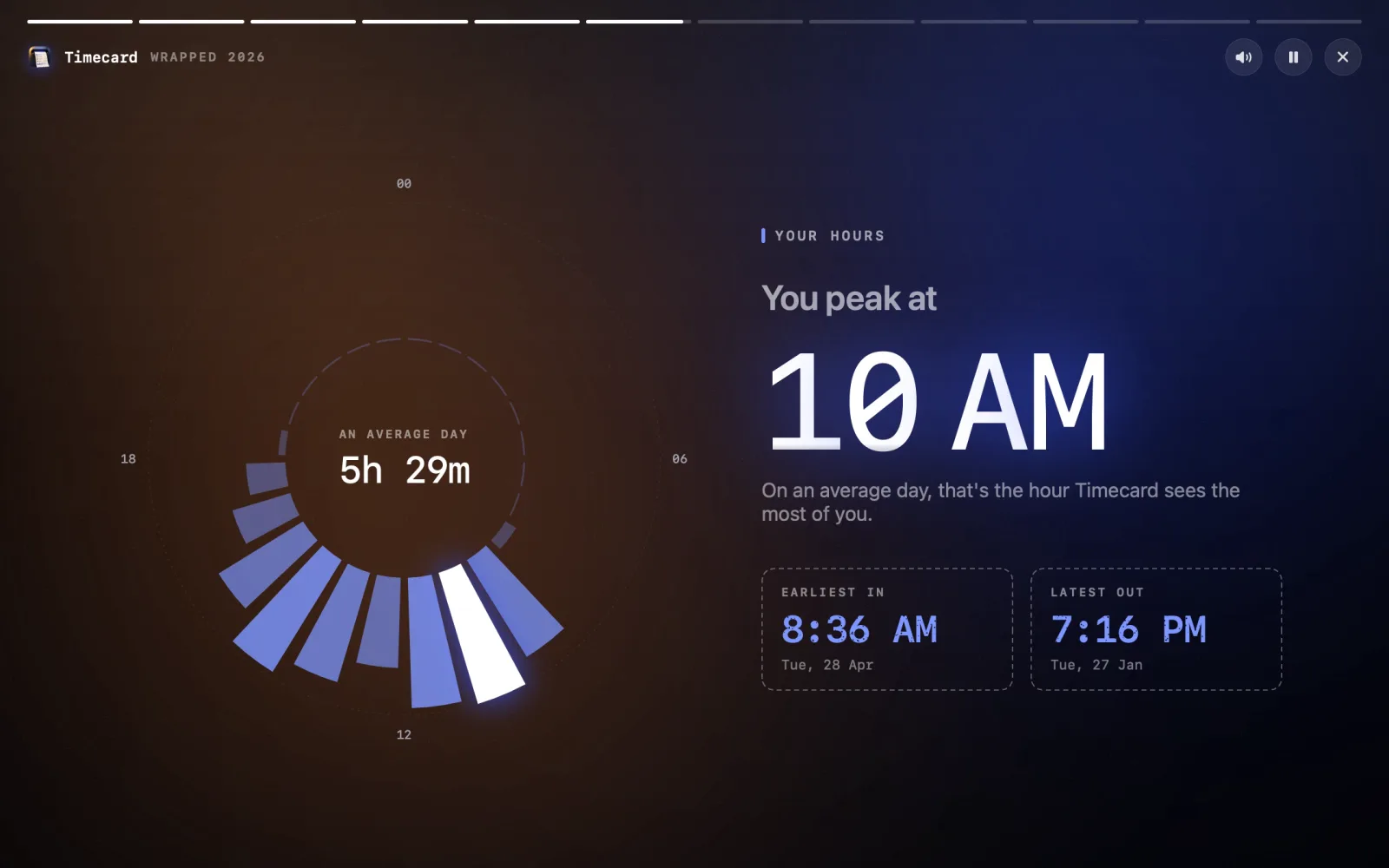
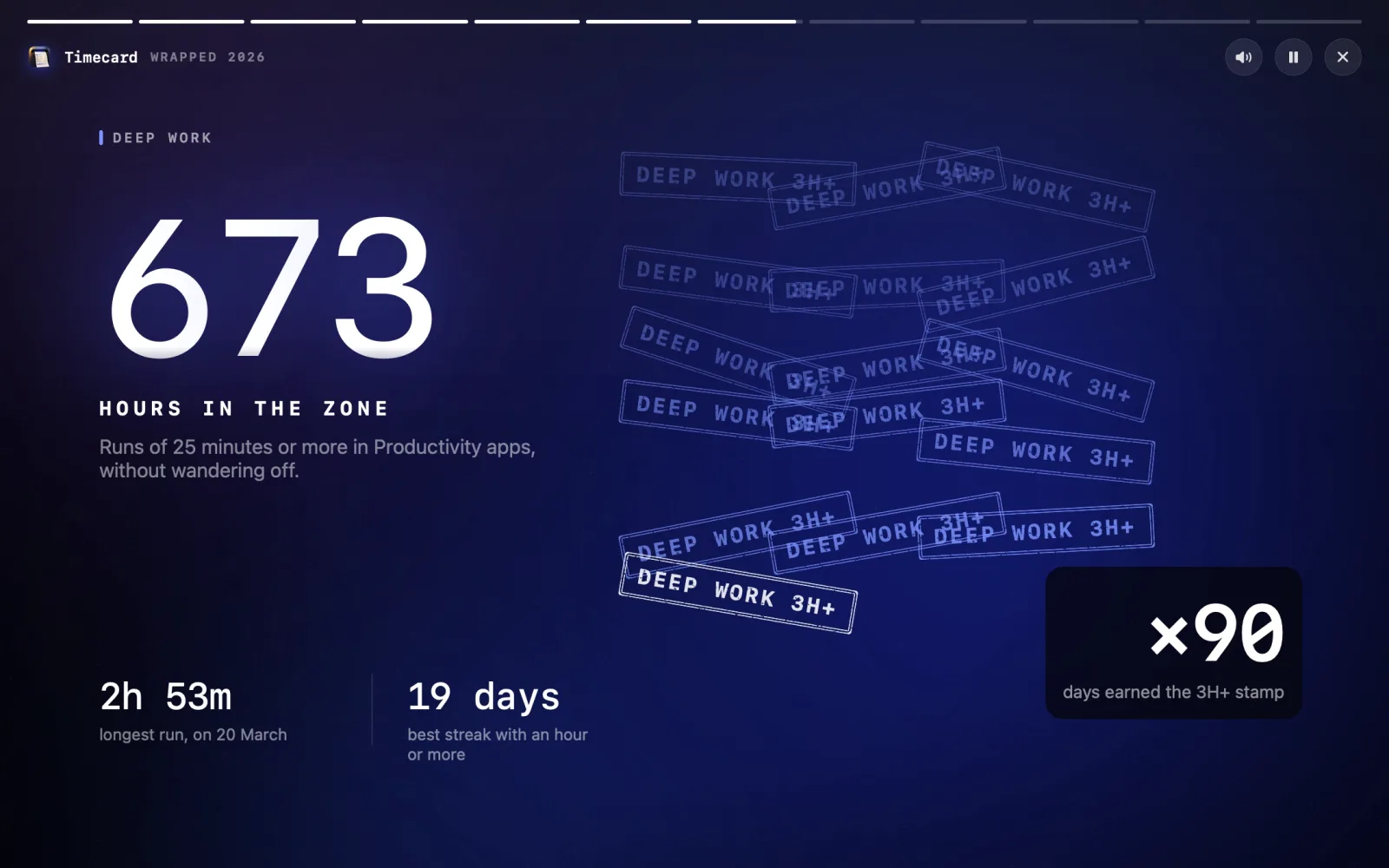
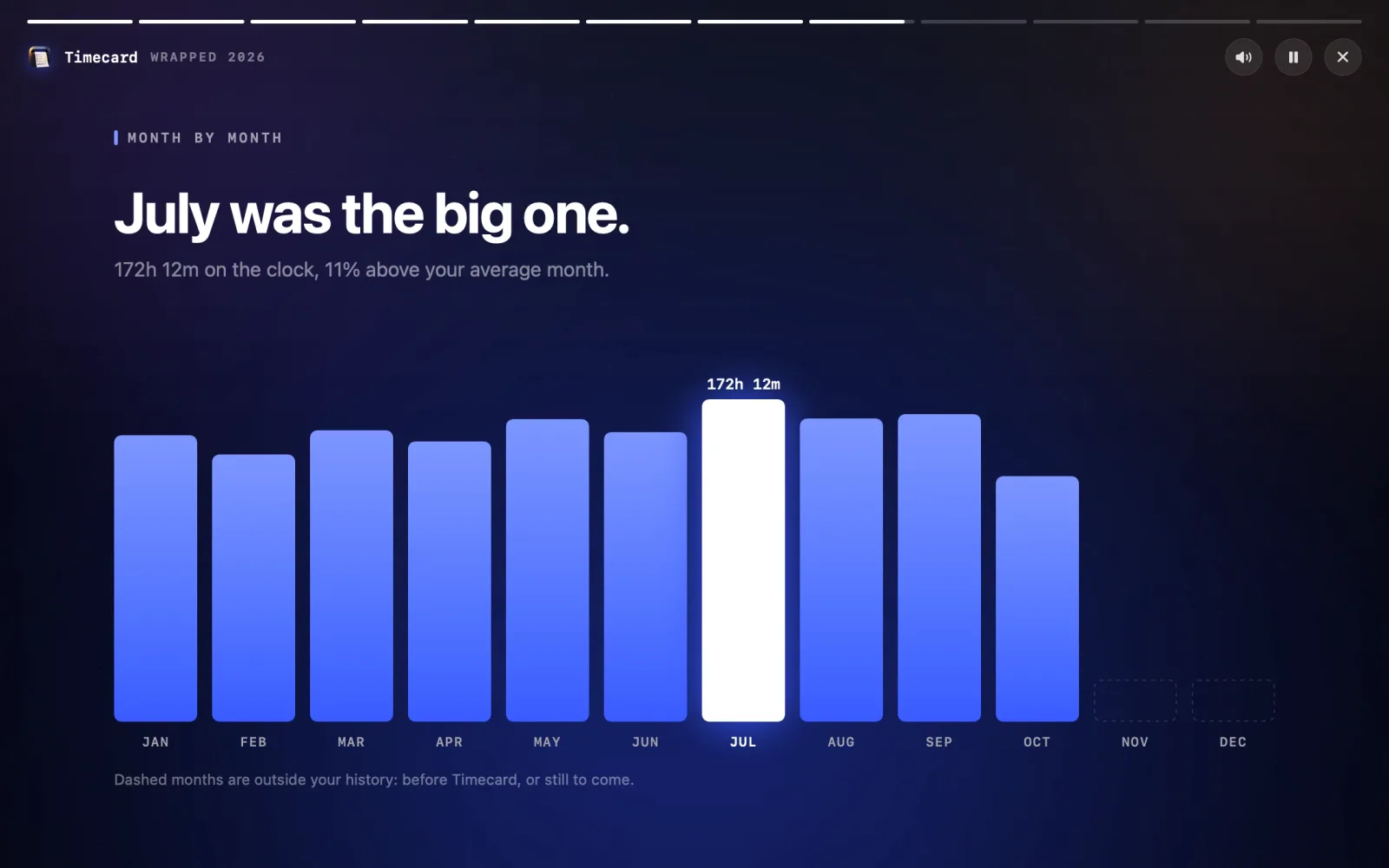
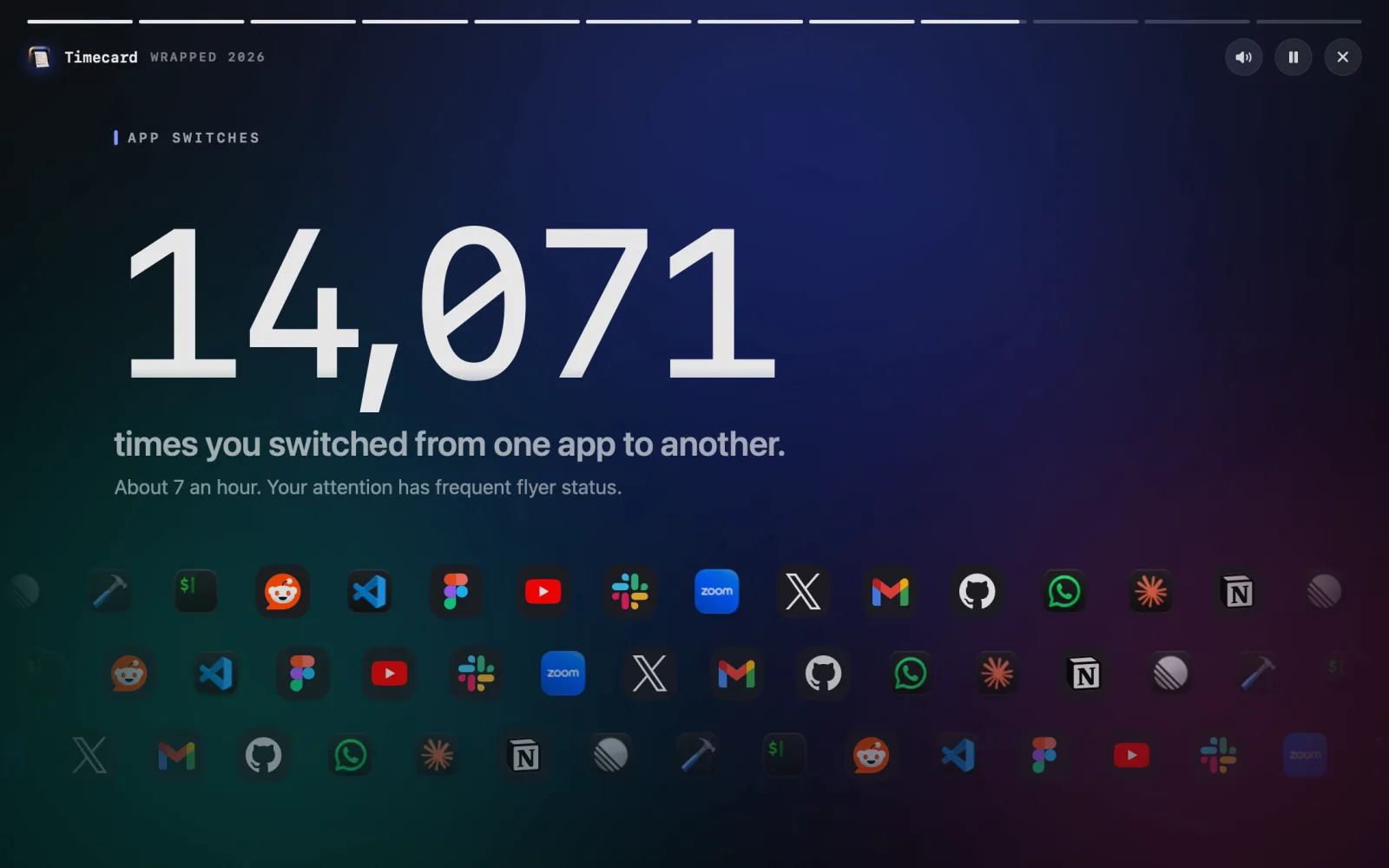
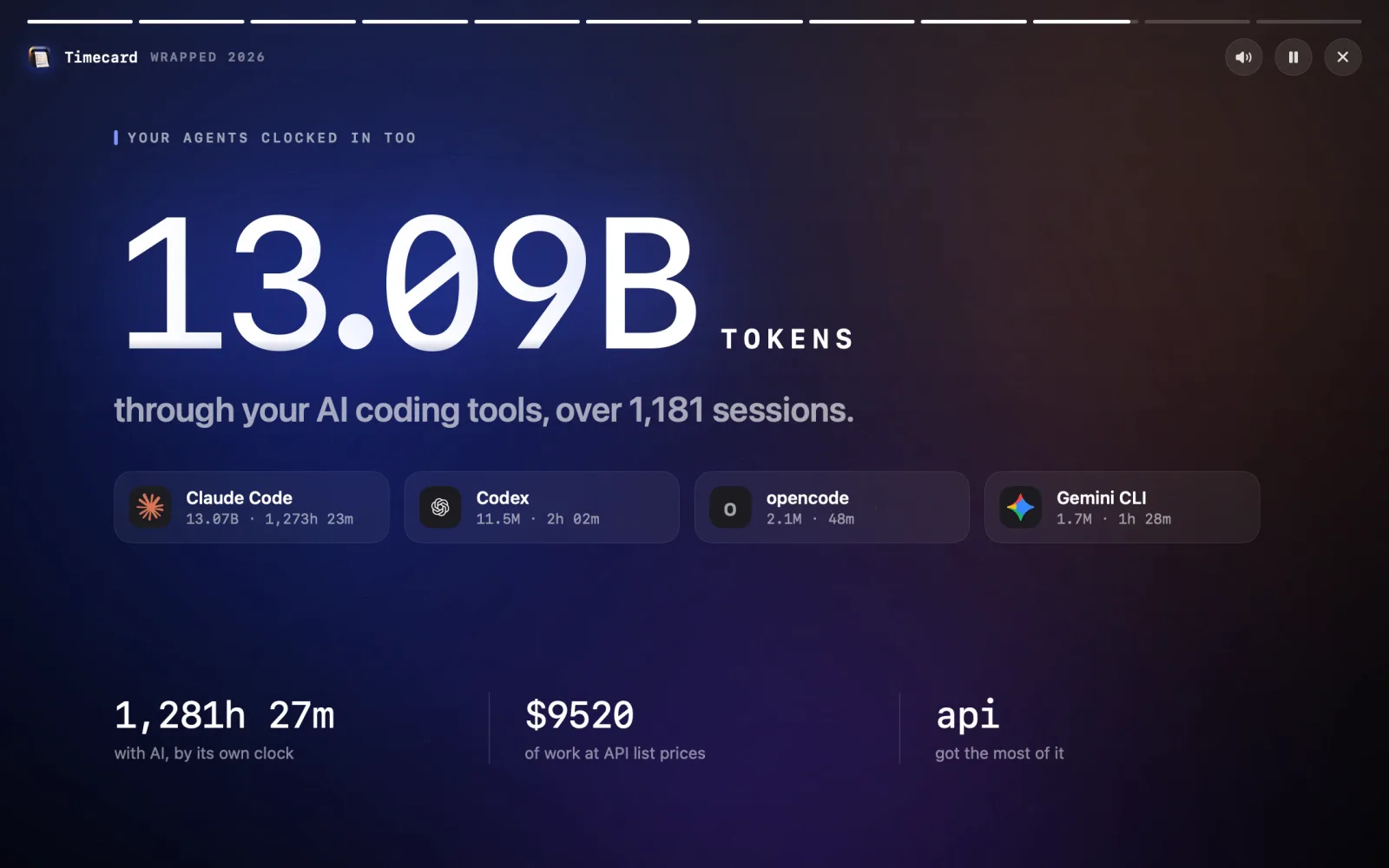
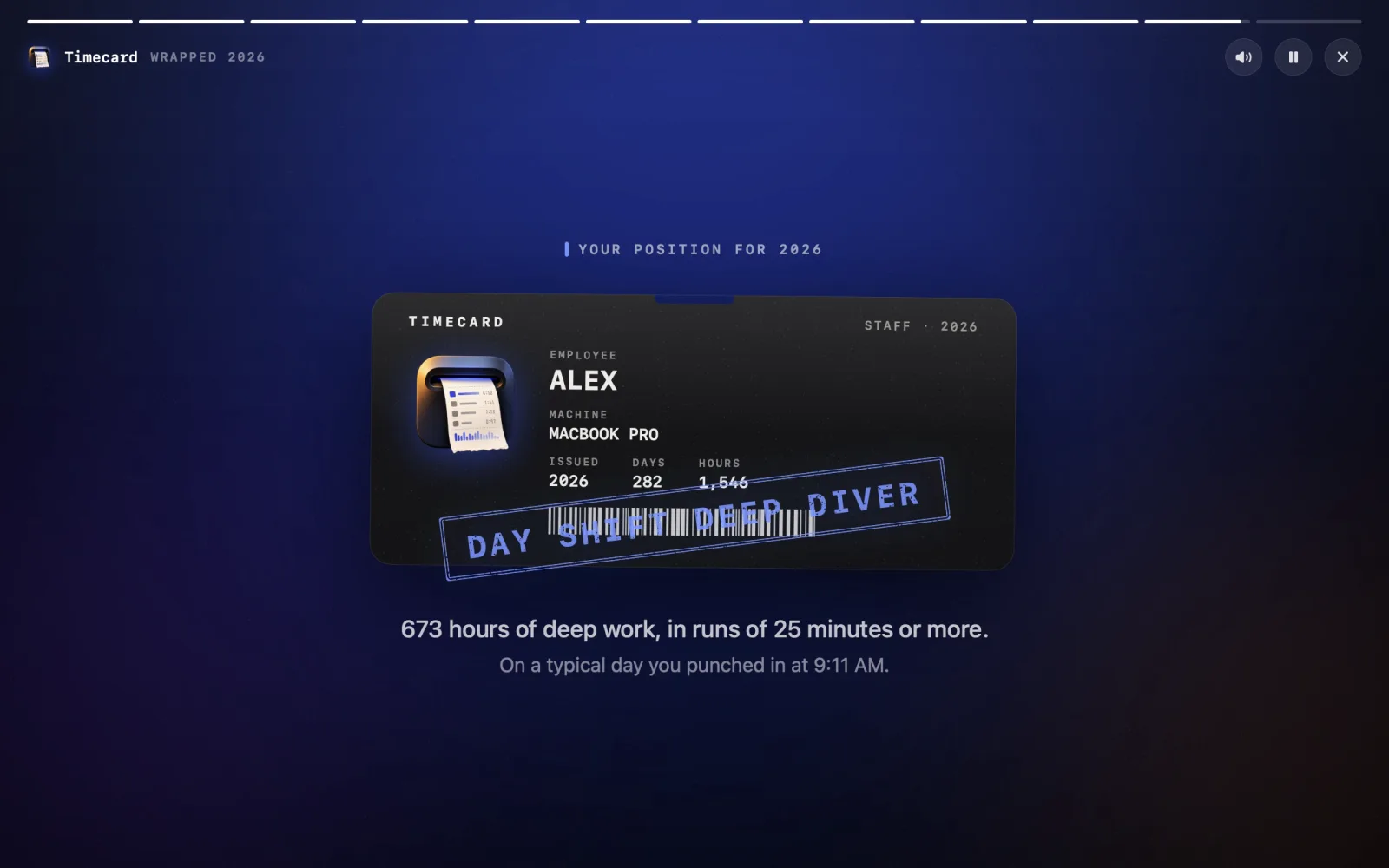
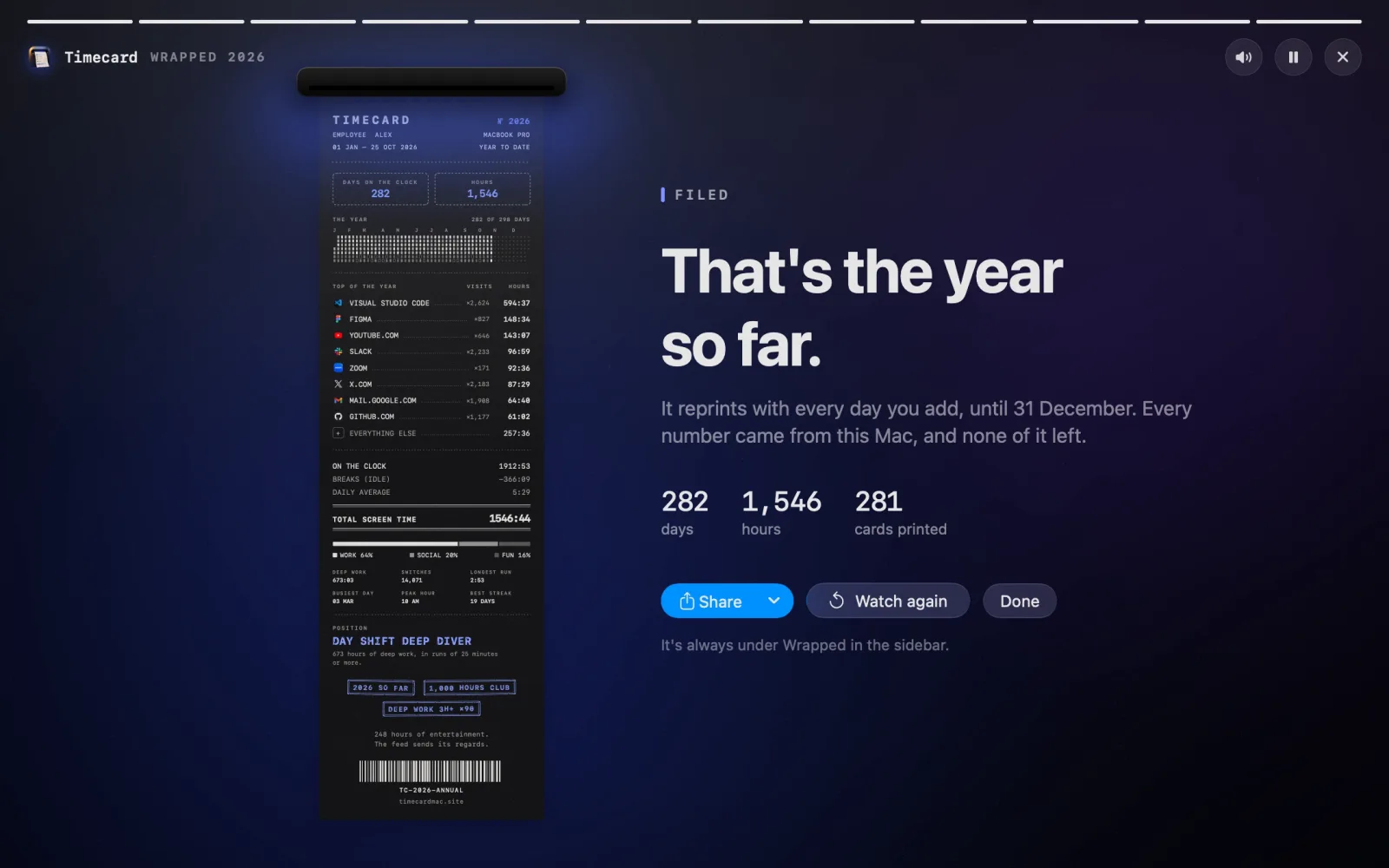
“2026. The year so far, read back.”
01 / 12
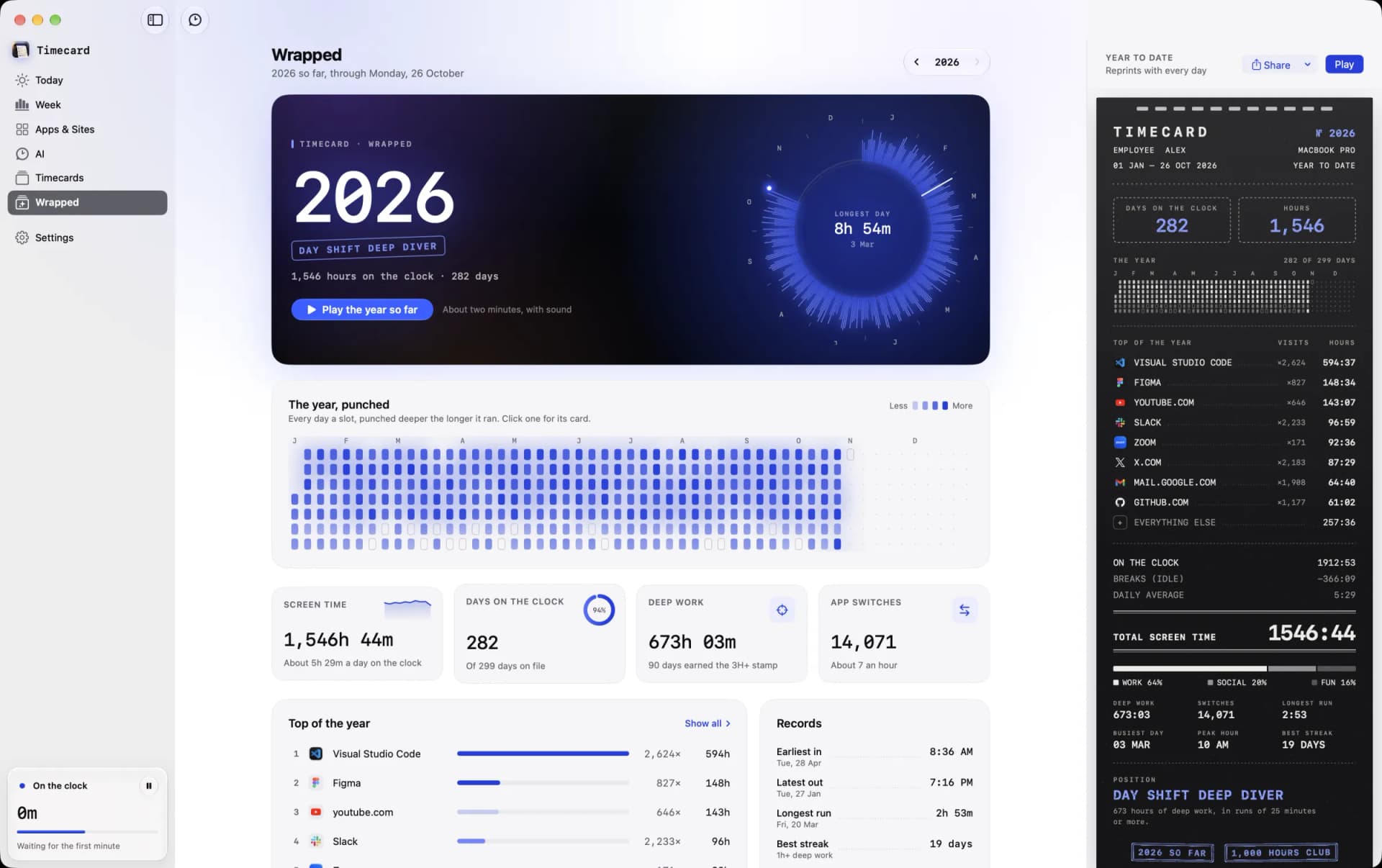
Your year punched day by day into a card: every day on the clock, dimmer before Timecard was installed and empty for the days still to come.
A position for the year
Eighteen titles. One is yours.
Timecard reads your year and stamps a title on it: a shift for when you work, a role for what the time went to. The role is the first one that fits, in this order. Try them.
The shift · when you work
The role · what the time went to
YOUR POSITION FOR 2026
YouMACHINE
This MacISSUED
2 Dec
Deep Diver
673 hours of deep work, in runs of 25 minutes or more.
Regular daytime hours: neither early nor late · 45%+ Productivity, much of it in deep-work runs
The annual card
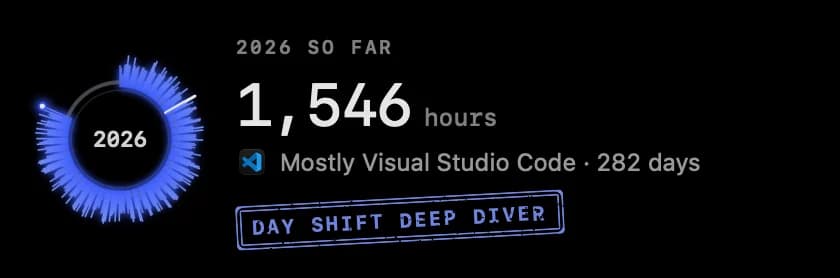
The whole year, on one long card.
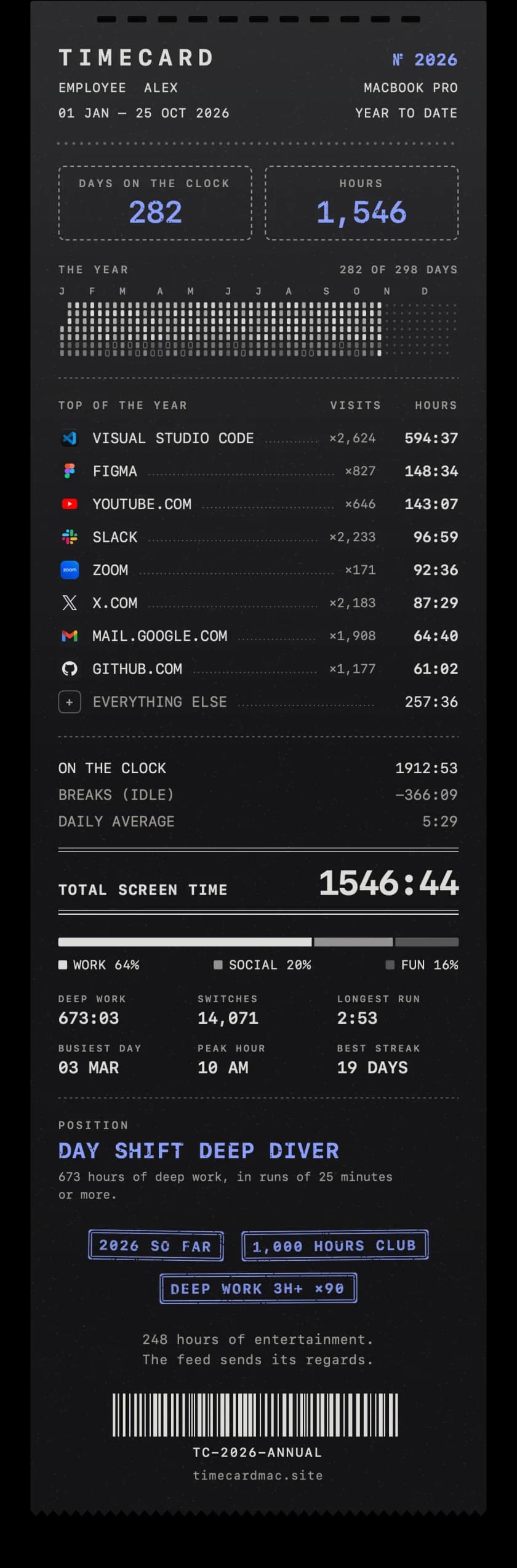
The story ends by printing your annual card, the same way your daily timecard prints each evening. Until the year is wrapped on 2 December it says Year to date and reprints as the days go by. Then it becomes your Annual card.
Top of the year
Your top apps and sites, with visits and hours
On the clock
Days, hours, breaks and the daily average
Records
Earliest in, latest out, longest run, best streak
Peaks
Your busiest day, your peak hour and app switches
Position
Your title for the year, with the reason
Stamps
The badges you earned, like 1,000 HOURS CLUB
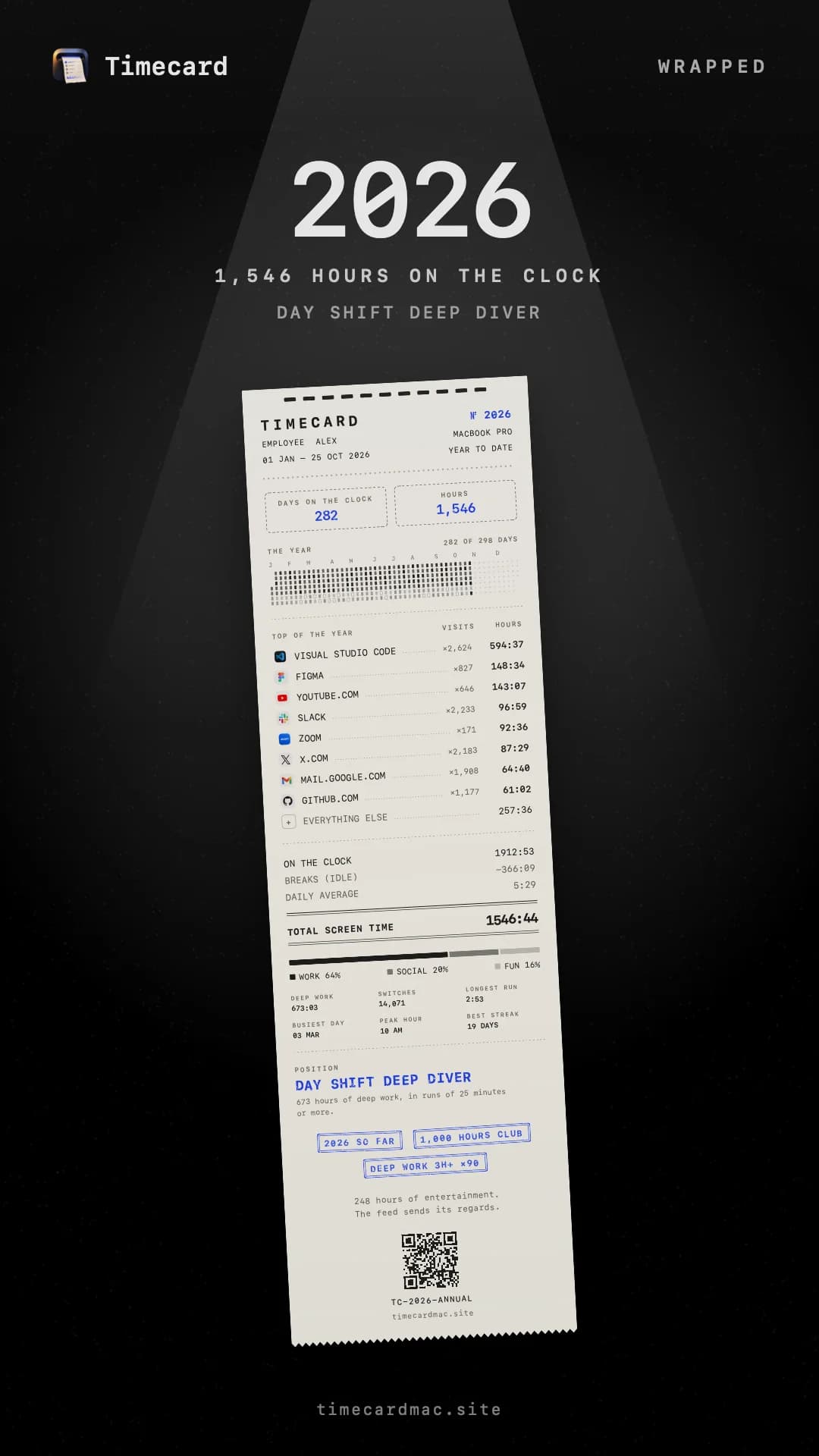
Share it, or keep it.
On the backdrop and paper you last picked for your daily cards.
- Story · 1080 × 1920
- Post · 1080 × 1350
- Copy
- Save as PNG
Without opening anything
On 2 December, the notch tells you.
Timecard already runs in your menu bar, so your year doesn't wait to be found. On 2 December your year is wrapped, and at the first quiet moment the notch widens, cranks through your year and stamps your position. Click anywhere on it, or Play your year, and the whole story plays in Timecard. Or press Print and the card feeds out of the notch.
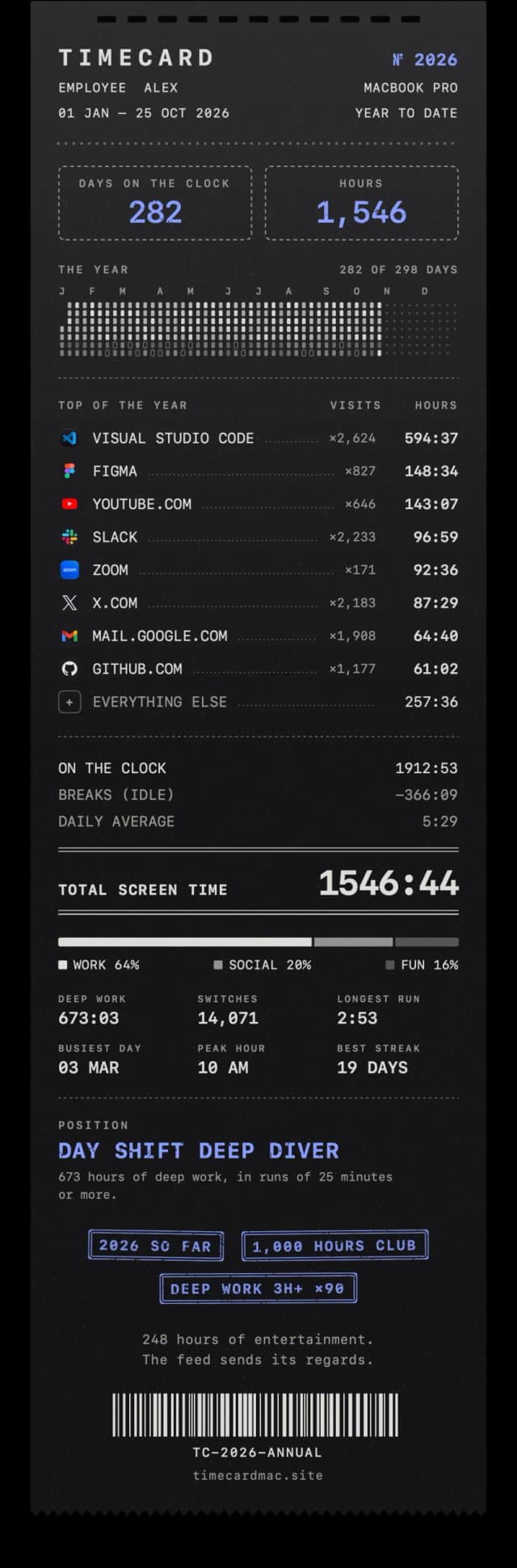
YOUR 2026 ON THE CLOCK
0hours
 Mostly Visual Studio Code · 282 days
On 2 December, the notch tells you
You don't have to open anything. On 2 December your year is wrapped, and at the first quiet moment the notch cranks through it and stamps your position. Click it and the whole story plays in Timecard, or print your card. Never in a call, a full-screen app or near your evening card.
It waits for a quiet moment
- Only when you're at your Mac
- Never in a call, a full-screen app or a presentation
- Never near your evening card
- At most once a day, and it stops after three tries
Menu bar · Spotlight · Siri
Ask how your year was.
Wrapped is an App Intent, so Spotlight, Siri and Shortcuts can play it, print it, or answer with your hours, top app and position. From 2 December, a small dot on the menu bar icon means your year is ready, with Play and Print right in the menu.
- “Play my year”
- “Print my year”
- “How was my year”
The Wrapped page
Sealed until 2 December, then all of it at once.
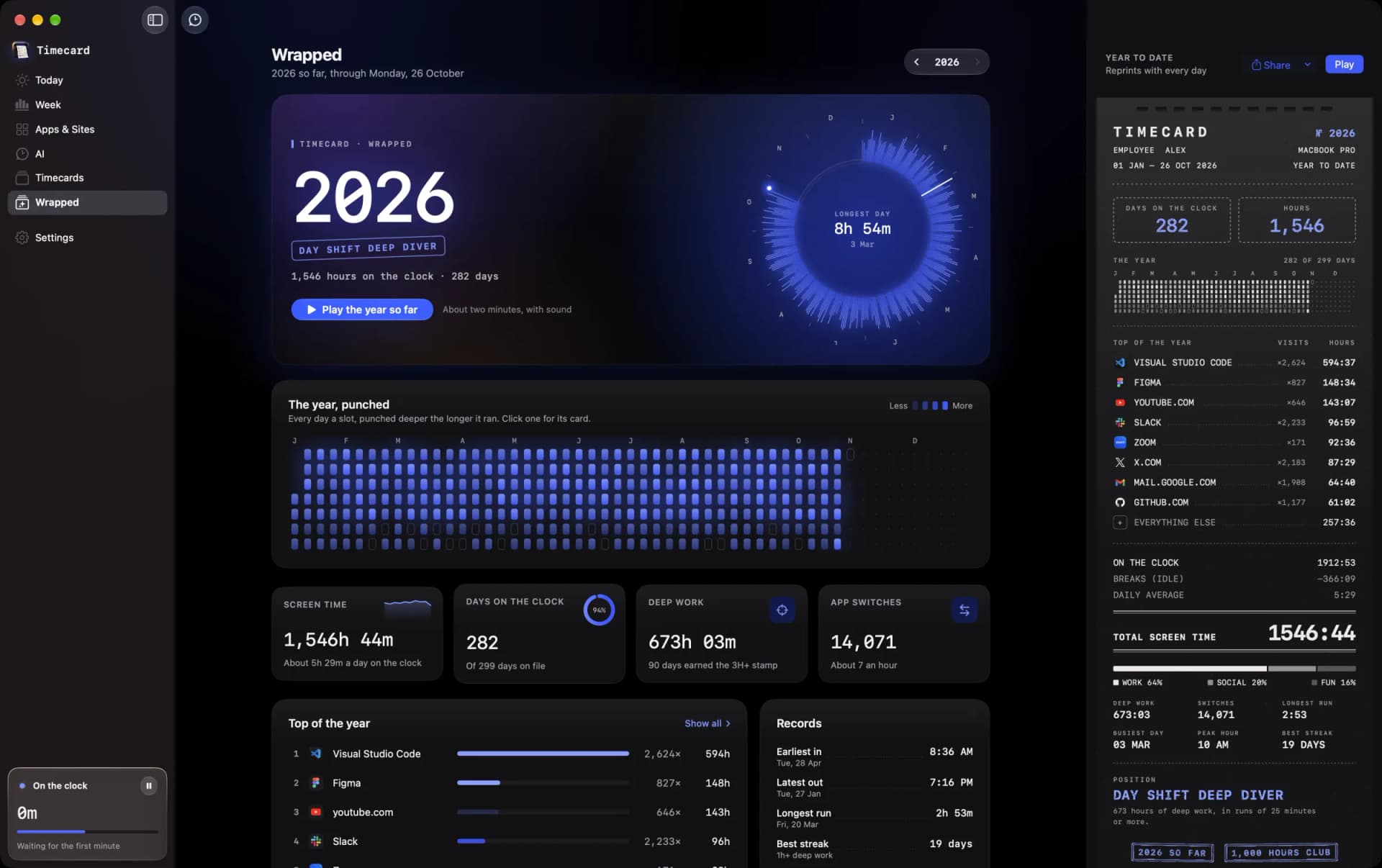
Until the wrap, the sidebar's Wrapped page is an envelope: a countdown to 2 December and your days punched in, with nothing from inside. Then it opens on the year punched day by day (click a day to open its card), your top apps, records, month by month, a typical day, your AI year and the annual card. Years gone by are open any time: switch years at the top.
Worked out on your Mac. Nothing uploaded.
Other Wrapped features are made on a server from data you've already sent. Timecard has no server to send it to. Your history lives in one file on your Mac, Wrapped is worked out from it there, and the share image only exists when you ask for it. What Timecard sends
How to
See your Wrapped in four steps.
- 01
Update to Timecard 2.3
Timecard updates itself, or download the latest version from timecardmac.site. Your history is already there.
- 02
Open Wrapped
Click Wrapped in the sidebar. Before 2 December it counts down to the wrap; from then it has the whole year: punched day by day, your top apps, records and the annual card.
- 03
Press Play on 2 December
The story is sealed until the year is wrapped. Then it plays scene by scene in its own window. Click to go on, hold to pause, use the arrow keys and Space, or Esc to leave.
- 04
Print or share your card
At the end, print the annual card, or share it as a story (1080 × 1920) or a post (1080 × 1350), copy it or save it.
No Timecard yet? It imports the weeks macOS Screen Time kept, so your Wrapped starts with history.
Get TimecardGetTimecard Wrapped
questions
What is Timecard Wrapped?
A Spotify Wrapped for your Mac. Timecard plays back your year in screen time, scene by scene: your total hours, your longest day, your top five apps and sites, where the time went, the hour you peak, deep work, month by month, app switches, your AI coding year and a position for the year. It ends on an annual card you can print from the notch and share.
Is there a Spotify Wrapped for Mac screen time?
Apple doesn't make one: macOS Screen Time only keeps about four weeks. Timecard keeps your history forever in one file on your Mac, so it can play back a whole year. Wrapped is part of Timecard 2.3.
When can I see my Wrapped?
On 2 December, when the year is wrapped: it counts 1 January to 1 December. The notch tells you once, at a quiet moment, and offers to print your annual card. Then open Wrapped in the sidebar and press Play, or say "Play my year" to Siri or Spotlight. Until then your year is sealed: the Wrapped page counts down, and Siri tells you how many days are left. Years gone by play any time.
What dates does Wrapped cover?
1 January to 1 December. The year is wrapped on 2 December, so your annual card is final when the notch prints it. The rest of December isn't counted in that year's Wrapped.
How is my position worked out?
From your own numbers. The shift comes from when you work: Night Shift if 22% or more of your time is between 9 PM and 4 AM, Early Shift if you typically punch in before 7:30 AM, Day Shift otherwise. The role comes from what the time went to: Air Traffic Controller, Deep Diver, Maker, Correspondent, Critic or Generalist. The card always shows the number that earned it.
Does Wrapped need a full year of history?
No. It uses what Timecard has on file, including the weeks it imported from Screen Time, and says "so far" or "on file since" wherever it matters. Months before your history are drawn dashed, not as zero. The annual card reprints with every day you add, until the year is wrapped on 2 December.
Can I see previous years?
Yes. Timecard keeps history forever, so the Wrapped page has a year switcher at the top for every year you have on file.
Can I share my Wrapped?
Yes. Share the annual card as a story image (1080 × 1920) or a post (1080 × 1350), copy it, or save it as a PNG. It uses the backdrop and paper you last picked for your daily cards.
Is my Wrapped uploaded anywhere?
No. Wrapped is worked out from the history stored in one file on your Mac. There's no account and no server: the share image is made on your Mac when you ask for it, and nothing leaves until you send it somewhere yourself.
Which Macs does Wrapped work on?
Every Mac Timecard runs on: macOS 14 Sonoma or later. On a Mac without a notch, the wrap moment drops from the top of the screen instead.
Keep going