 Pastely
 Archly

Your iPhone's screen time, on your Mac.
Screen Time already syncs your iPhone to your Mac. Timecard reads it there and keeps it, beside your Mac's day: every session on both screens, every time your phone broke your focus and what it cost you, and yesterday from the notch each morning. Go live, and set limits your iPhone holds. No iPhone app.
- iPhone apps to install
- 0
- iPhone apps to install
- screens, in one day
- 2
- screens, in one day
- kept, where Apple keeps four weeks
- ∞
- kept, where Apple keeps four weeks
- bytes uploaded
- 0
- bytes uploaded
How it works
Two ways in. Neither is an app.
Your iPhone reaches this Mac two ways, both already built into iOS. Screen Time brings the whole day, a few hours late. The Timecard Gate shortcut brings the apps you pick, the moment you open them. Turn on the first and you have the iPhone page; add the second when you want limits.
Screen Time sync
Every few hours · every app
With Share Across Devices on, your iPhone syncs every app session to your Mac. Timecard reads it and keeps it for good.
- The iPhone page: both screens, hour by hour
- Your phone and your focus
- The morning recap from the notch
- The week, on both screens

Timecard Gate
In moments · the apps you pick
An automation runs the Gate each time a chosen app opens, and iCloud Drive brings the note to your Mac in moments.
- Live opens, today and this hour
- A nudge when your phone comes out mid-focus
- Daily open limits your iPhone holds
- Time's up, back to the Home Screen
Set up · part one
Bring your iPhone in. Three switches.
Everything on the iPhone page comes from here. If something's missing, the iPhone page says which switch, with a button that opens the right setting.
- 01
Update to Timecard 2.4
Timecard updates itself, or download the latest version from timecardmac.site. Your Mac's history stays where it is.
- 02
On your iPhone, share Screen Time
Open Settings › Screen Time and turn on Share Across Devices.
- 03
On your Mac, share it too
Open System Settings › Screen Time and turn on Share across devices, signed in with the same Apple Account as your iPhone.
- 04
Let Timecard read it
System Settings › Privacy & Security › Full Disk Access › turn on Timecard. If you imported your Mac's Screen Time history, it's already on.
- 05
Open iPhone in the sidebar
Your iPhone syncs every few hours, so the first sync can take a while. Leave both on Wi-Fi and it arrives on its own.
If the iPhone page asks
- Bring your iPhone in
- No iPhone has synced to this Mac yet. Check Share Across Devices on both, and the same Apple Account on both. The first sync can take a few hours.
- Let Timecard read Screen Time
- Your iPhone's history lands where Timecard reads your Mac's Screen Time from, so it needs Full Disk Access. Click Open Full Disk Access and turn on Timecard.
- Synced 2 hours ago
- It's working. Your iPhone syncs every few hours, and the page says when it last did.
The iPhone page
Both screens, one day.
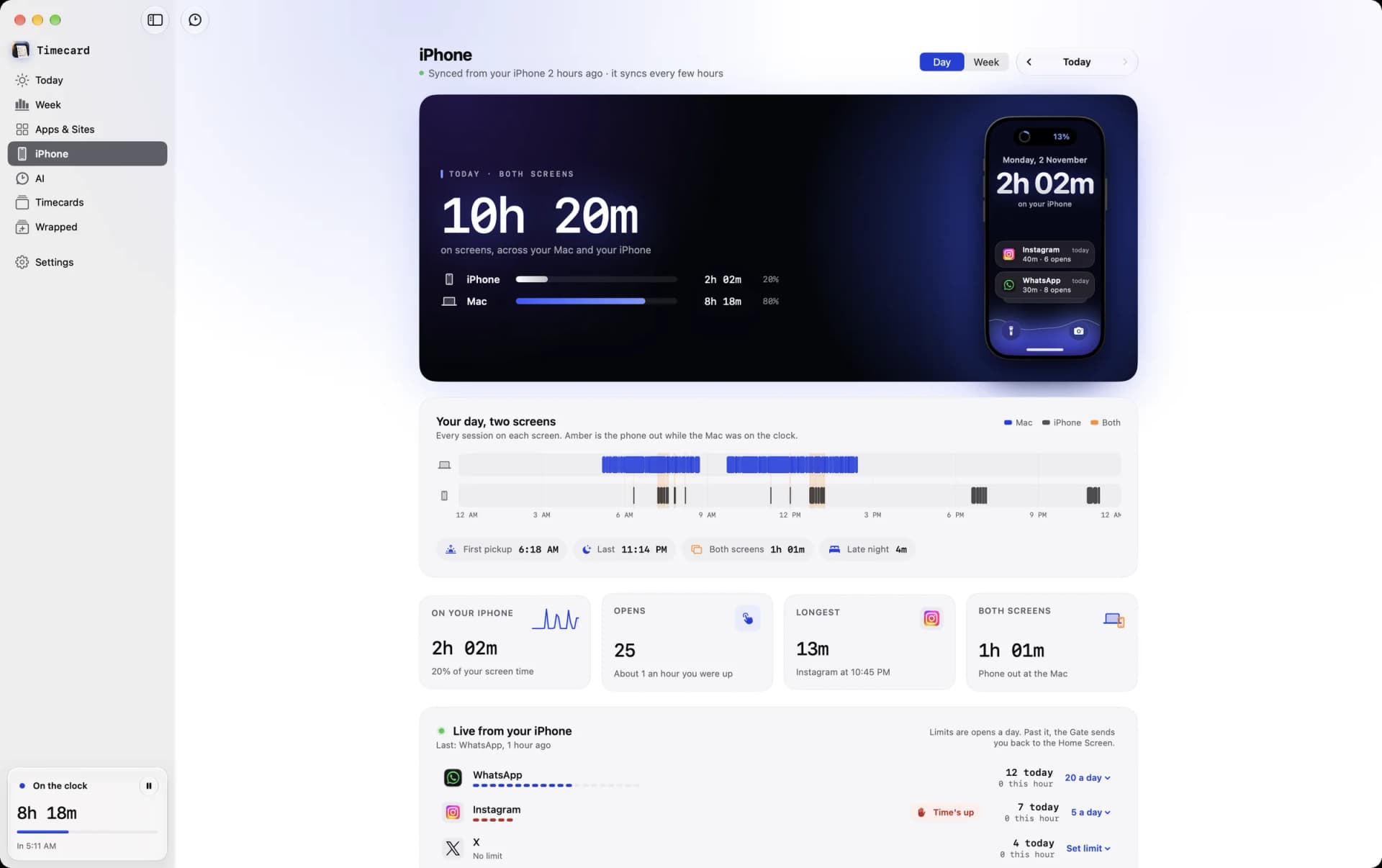
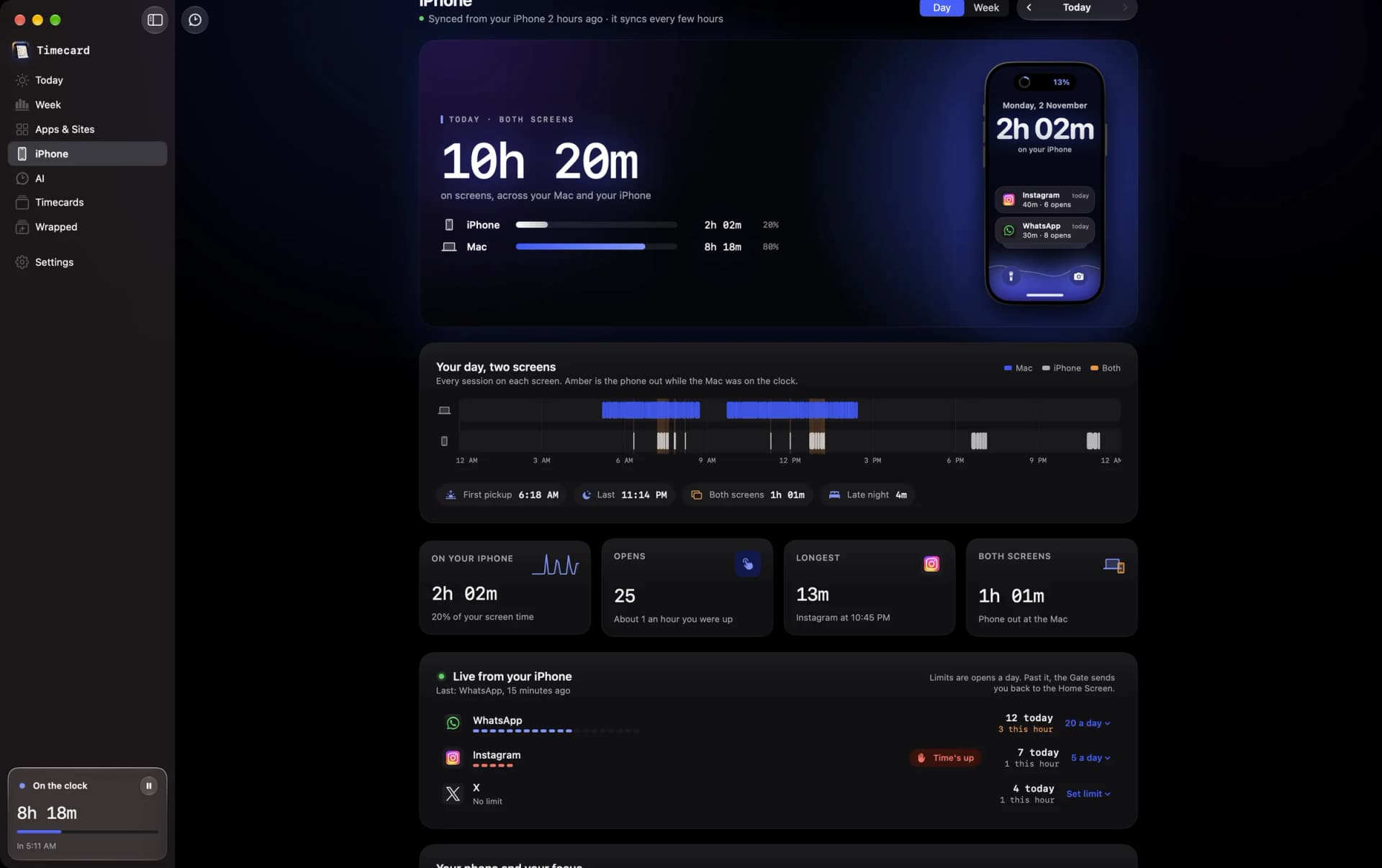
Your total across both screens, then every session on each, hour by hour. Amber is the phone out while the Mac was on the clock. Then your first pickup, your last look, both screens at once, late night, and every app with its opens. Switch to Week for both screens day by day.
Your phone and your focus
The part nobody shows you.
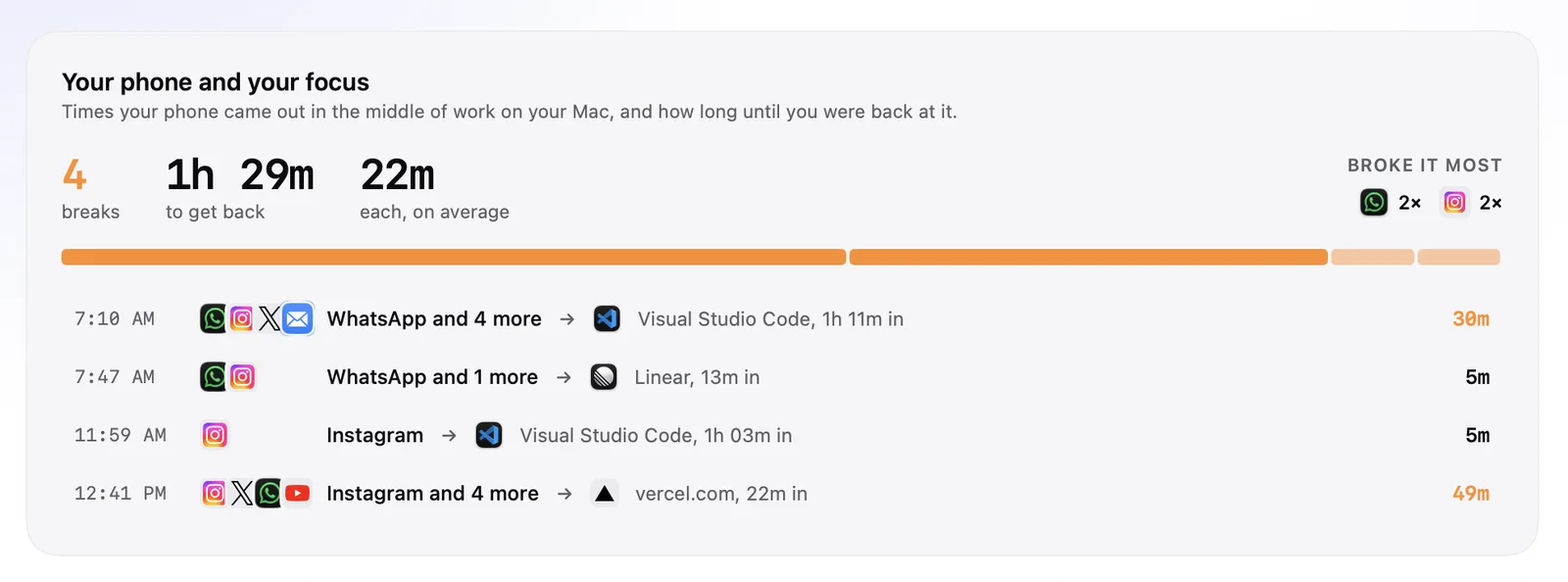
Every time your phone came out in the middle of work on your Mac, which apps did it, where you were, and how long until you were back at it.
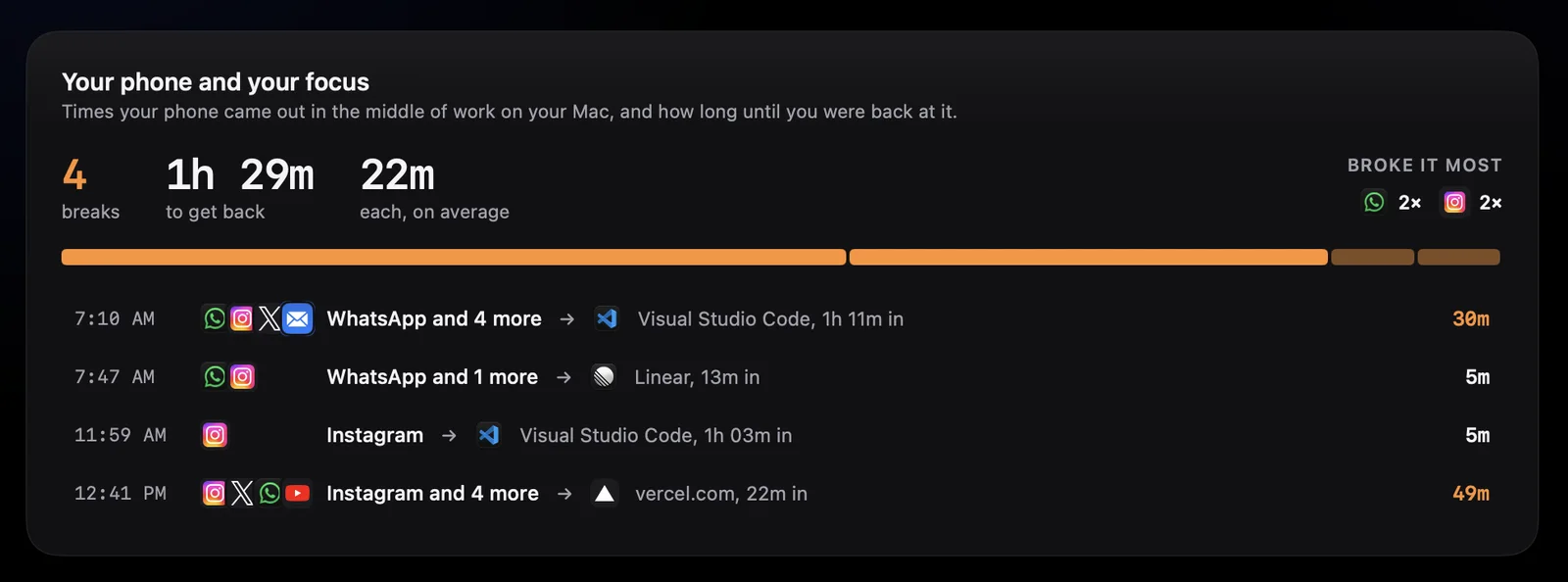
Focus
A run of Productivity apps on your Mac, with blips under a minute joined up, like deep work.
A break
Your phone out ten minutes or more into a run, or within a minute of it going quiet.
One reach
Checks a couple of minutes apart count once. Under 15 seconds, or a call, doesn't count.
What it cost
From phone in hand until you're back in a Productivity app on your Mac, up to an hour.
Without opening anything
Every morning, the notch tells you.
Your iPhone syncs hours behind, so Timecard doesn't pretend to know about it as it happens. By morning yesterday is whole, and that's when the notch opens with it: your total, the app that took most of it, and your late nights. Click See the day to open it.
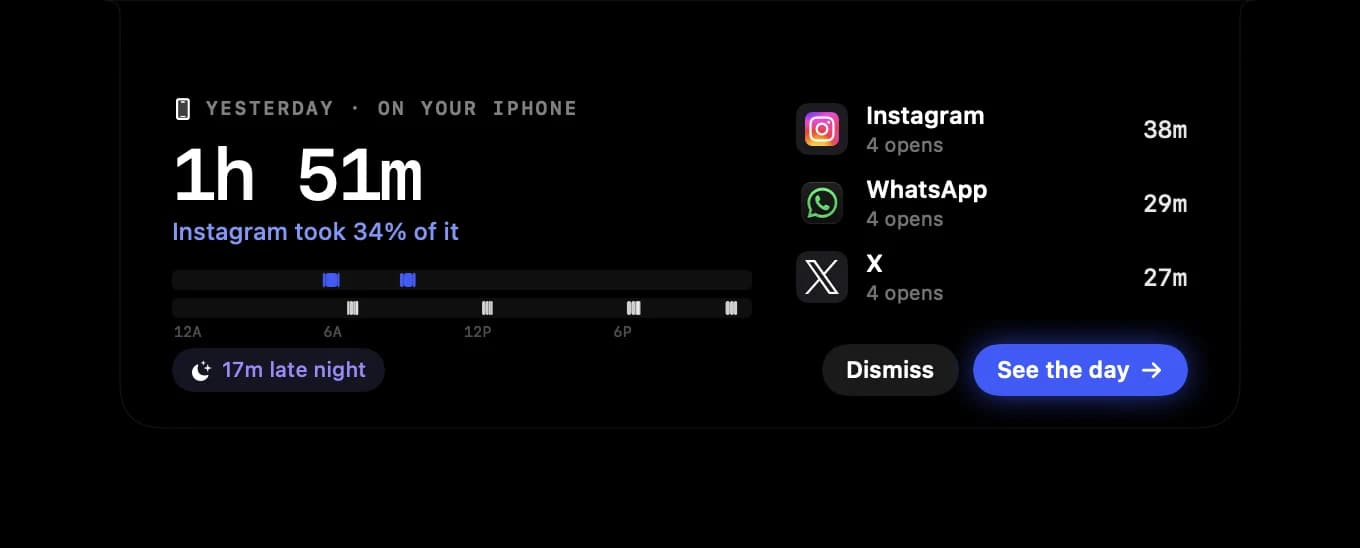
Every morning, the notch tells you
Once your iPhone has synced, yesterday drops out of the notch: your total, the app that took most of it and your late nights. Once a day, before 1 PM, at a quiet moment.
It waits for a quiet moment
- Once a day, before 1 PM
- Only after your iPhone has synced since midnight
- Never in a call, a full-screen app or a presentation
- Off in Settings › Morning iPhone recap
Set up · part two
Go live with Timecard Gate.
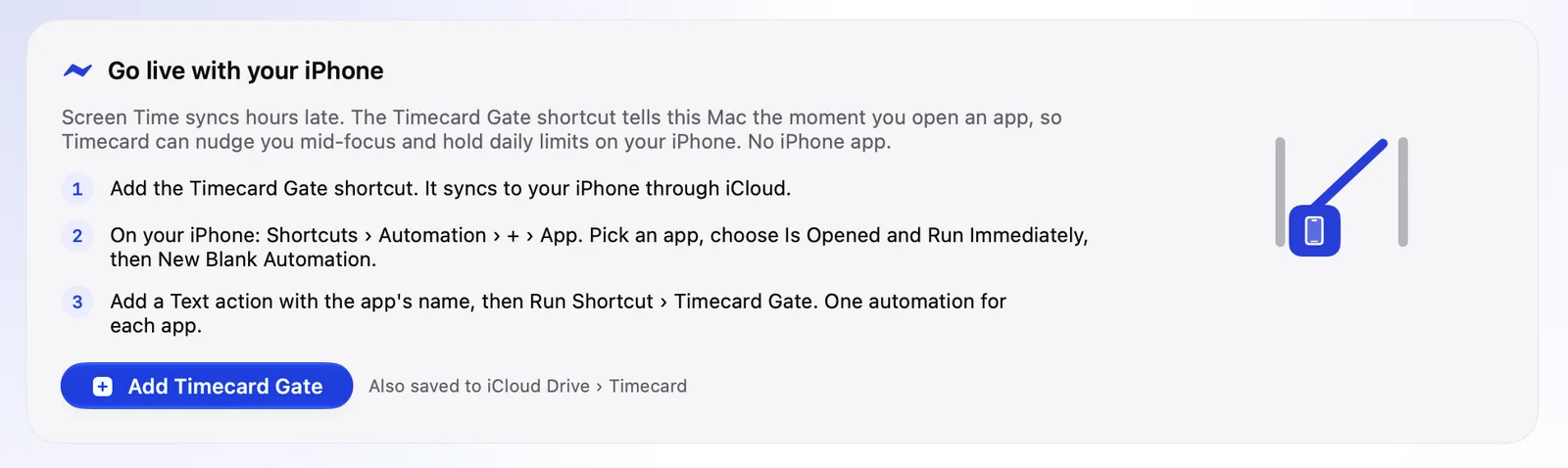
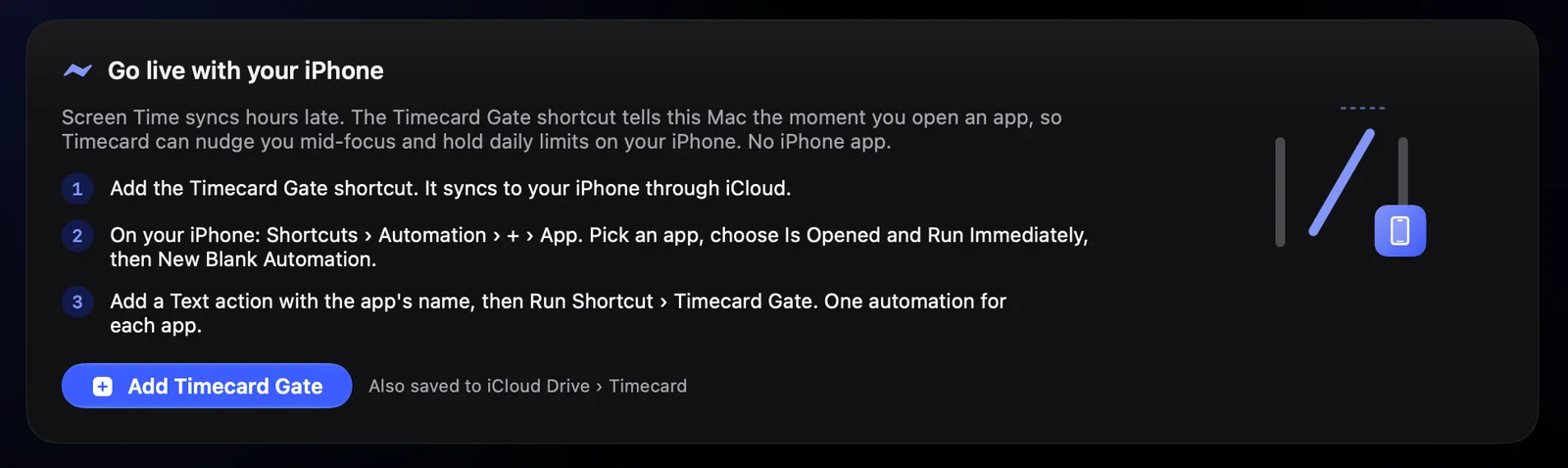
Screen Time syncs hours late. A Shortcuts automation doesn't. Timecard Gate runs on your iPhone each time an app you pick opens, and tells your Mac through iCloud Drive in moments. That's what lets Timecard nudge you mid-focus and hold limits on your iPhone, still with no iPhone app.
- 01
Add Timecard Gate on your Mac
On the iPhone page, under Go live with your iPhone, click Add Timecard Gate. Shortcuts opens to add it, and iCloud brings it to your iPhone. A copy is also saved to iCloud Drive › Timecard.
- 02
Make an automation on your iPhone
Open Shortcuts › Automation, tap +, and choose App. Pick the app you want to watch, like Instagram.
- 03
Run it every time, silently
Choose Is Opened and Run Immediately, turn off Notify When Run if you see it, then tap Next and New Blank Automation.
- 04
Tell the Gate which app it is
Add a Text action with the app's name, exactly as you want it to read on your Mac, like Instagram. Then add Run Shortcut and pick Timecard Gate.
- 05
Open the app once
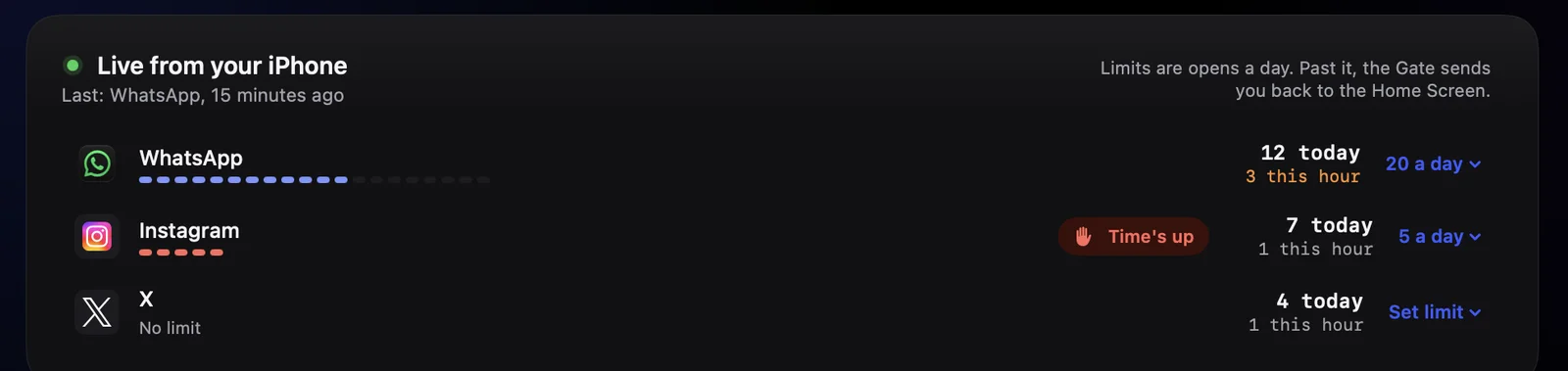
Within moments it appears on your Mac under Live from your iPhone, with opens today and this hour. Make one automation for each app you want to watch.
- 06
Set a limit, if you want one
Next to the app, click Set limit and pick 3, 5, 10, 15, 20 or 30 opens a day, or Custom. Turn it off from the same menu.
Before you start
- iCloud Drive on, on both your iPhone and your Mac
- Shortcuts on your iPhone (it comes with iOS)
- The same Apple Account on both
If an open doesn't show up
- Check the automation says Run Immediately, not Run After Confirmation.
- Check the Text action has the app's name, and Run Shortcut is set to Timecard Gate.
- Give iCloud a moment on a slow connection. Timecard looks every ten seconds.
Limits
Set it on your Mac. Your iPhone holds it.
iPhone limits count opens, not minutes: opens are what the Gate sees the moment they happen. Once an app is past its limit, the Gate says time's up and sends you back to the Home Screen each time you open it, until tomorrow.
 Timecard Gate nowTime's up on Instagram. 5 opens a day.
Go live. Set a limit your iPhone holds.
Add the Timecard Gate shortcut and Timecard sees every open the moment it happens. Set opens a day on your Mac. Past it, the Gate says time's up and sends you back to the Home Screen.
Live from your iPhone
- Opens today and this hour for each app, with the last open
- 3, 5, 10, 15, 20 or 30 opens a day, or any number with Custom
- Pick up your phone ten minutes into work, and your Mac asks if you're getting back to it
- Turn a limit off from the same menu, any time
Read on your Mac. Nothing uploaded.
Phone trackers usually want an app on your phone and an account in their cloud. Timecard has neither. Your iPhone's history is what Apple already synced to your Mac, read there and kept in the same file as the rest. The Gate's notes are a line each, in your own iCloud Drive. What Timecard sends
Timecard and your iPhone
questions
Can I see my iPhone's screen time on my Mac?
Yes. With Share Across Devices on in Screen Time, your iPhone already syncs its app use to your Mac every few hours. Timecard 2.4 reads it there and shows it on its iPhone page, beside your Mac's day, hour by hour. There's no iPhone app to install.
Does Timecard need an iPhone app?
No. The history comes from Screen Time's own sync to your Mac, and the live side uses the Shortcuts app that's already on your iPhone, with a shortcut Timecard gives you.
How far back does it go?
Apple keeps about four weeks of iPhone history on your Mac. Timecard reads what's there the first time and keeps every session it reads from then on, so your history grows instead of rolling off.
Why is my iPhone a few hours behind?
That's how Screen Time syncs: every few hours, not live. It's why the morning recap waits until yesterday is whole. For the moment-by-moment side, add the Timecard Gate shortcut for the apps you care about.
How does Timecard count a focus break?
Focus is a run of Productivity apps on your Mac, with blips under a minute joined up. A break is your phone coming out ten minutes or more into a run, or within a minute of it going quiet. Phone checks a couple of minutes apart count as one, checks under 15 seconds and calls don't count, and the cost runs until you're back in a Productivity app, up to an hour.
How do iPhone limits work?
Limits are opens a day, set on your Mac for any app you've made a Timecard Gate automation for. When an app is past its limit, the Gate says time's up and goes back to the Home Screen when you open it, until tomorrow.
Can I get round an iPhone limit?
Yes, by turning the automation off in Shortcuts. The Gate is a nudge you set up for yourself, not parental control. For a limit you can't undo, use Screen Time's own App Limits with a passcode.
Does my iPhone's screen time leave my Mac?
No. Timecard reads what Screen Time has already synced to your Mac and keeps it in the same file as the rest of your history. The Gate's small notes, one per open, travel through your own iCloud Drive, like any shortcut's files. Nothing is sent to Timecard.
What do I need?
A Mac on macOS 14 or later with Timecard 2.4, an iPhone with Screen Time and Share Across Devices on, the same Apple Account on both, and Full Disk Access for Timecard. For the live side, iCloud Drive on both and the Shortcuts app on your iPhone.
Can I turn off the morning recap?
Yes. Settings › Morning iPhone recap. The iPhone page keeps working either way.
No Timecard yet? It imports the weeks your iPhone and Mac already kept, so you start with history.
Get TimecardGetKeep going