HelpTimecard for Mac

Full Disk Access

Full Disk Access lets Timecard read two things macOS keeps in a protected place: about four weeks of Screen Time history, and the App Limits you set in Screen Time. Everything else in Timecard works without it.

Find it inSystem Settings › Privacy & Security › Full Disk Access

How to turn it on

  1. In Timecard, click Open Full Disk Access, in setup or in Settings.
  2. System Settings opens on Privacy & Security › Full Disk Access, and a Finder window shows Timecard.
  3. Drag Timecard from that Finder window into the list, and switch it on.
  4. If macOS asks to quit and reopen Timecard, let it. The Screen Time history then imports by itself.
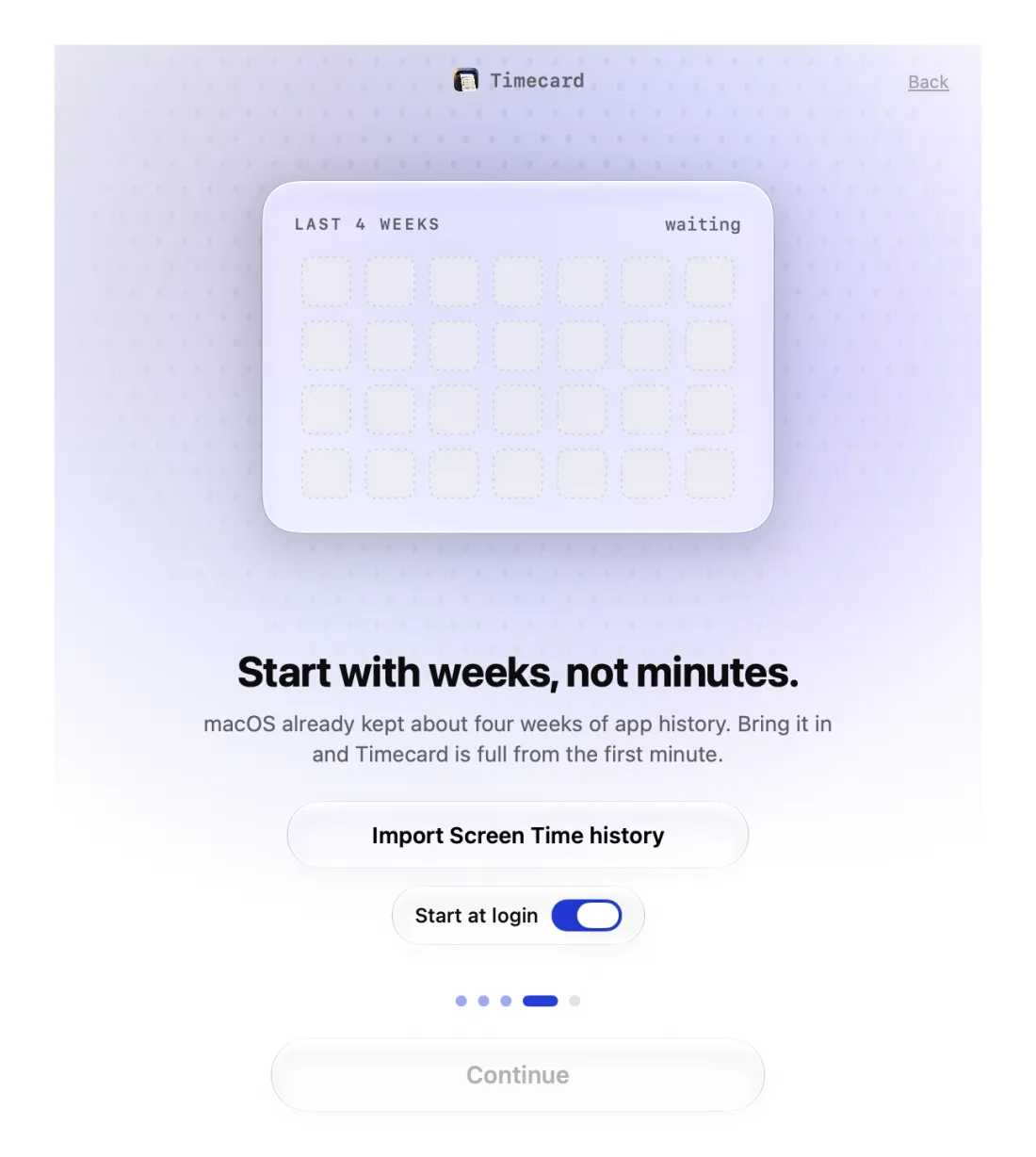
Timecard setup step that imports about four weeks of macOS Screen Time history

What Timecard reads with it

Only the Screen Time database: which apps you used and for how long, for the weeks macOS still has, and your Screen Time App Limits. It doesn't read your documents, mail or messages, and nothing it reads is uploaded.

If it stopped working after an update

Timecard 2.1.4 was signed by a new developer team, and macOS can keep showing the old permission as on while it no longer works. Open Privacy & Security › Full Disk Access, switch Timecard off and back on, or remove it and drag it in again.

Still stuck? Email princeajuzie1@gmail.com.

Full Disk Access
questions

Do I need Full Disk Access to use Timecard?

No. Tracking, cards, limits and the AI page work without it. It's only for importing the history macOS Screen Time already kept and for picking up your Screen Time App Limits.

Is it safe to give an app Full Disk Access?

It's a broad permission, so only give it to apps you trust. Timecard uses it to read the Screen Time database, keeps what it reads on your Mac, and never uploads your activity.

Why doesn't Timecard appear in the Full Disk Access list?

Apps only appear once they're added. Click Open Full Disk Access in Timecard, and drag Timecard from the Finder window that opens into the list.

More help